
How to Make a Moodle Quiz Your Students Will Love
Find out how to create an online knowledge or personality quiz using Opinion Stage’s quiz maker and share it with your students on Moodle. It’s quick and easy to set up, and a fun, interactive way to challenge students and inspire learning.
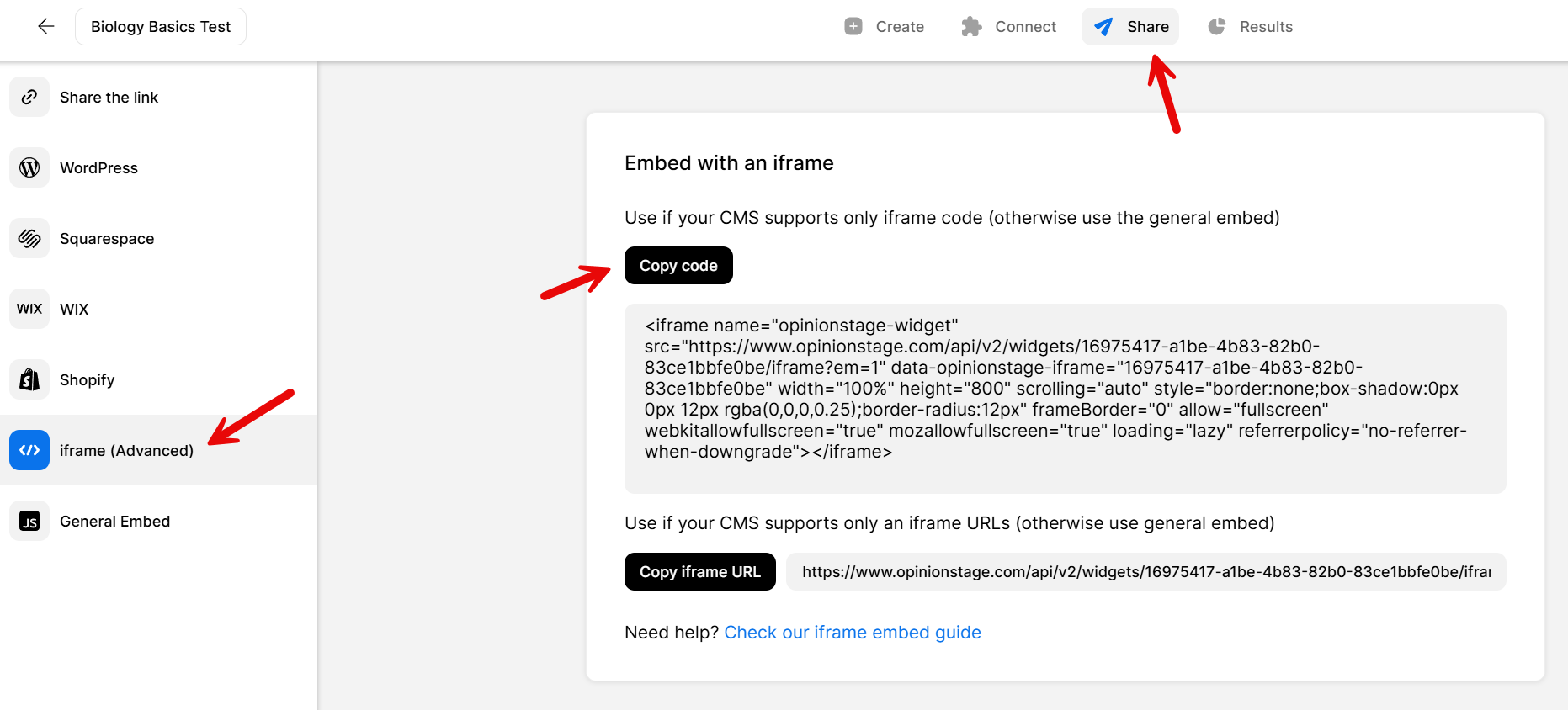
2. Copy the code
Click on the Share button located at the top of your screen and select the iFrame (Advanced) tab. Copy the iframe code.
3. Share your quiz on Moodle
Go to Moodle, open the html editor, and paste the iframe embed code.
Looking to keep your learners even more engaged? You can also create a Moodle poll to quickly gather feedback, check understanding, or encourage participation. It’s an easy way to add extra value to your course.
And now you’re done!
Best Practices For Creating a Moodle Quiz
Use these tips and suggestions to take your Moodle test to the next level and make it extra engaging, entertaining, and challenging.
Select Appealing Quiz Questions
The quiz question is the single most important element of the quiz. Select a quiz question that is appealing and interesting to your audience. You can try a few options and A/B test them.
Keep The Questions & Answer Options Short
The questions and answers of your quiz should be short and simple to verify the questions are easy to understand and answer.
Use Visuals In Your Moodle Quiz
Visual quizzes that include images on the cover, questions, and answers will get much higher participation rates. The images can also add context to the questions and answers.
Make It Visible
Locate the quiz above the fold and/or use an enter/exit popup to verify your quiz is noticed by your audience.
Optimize Your Quiz
After you complete creating the quiz and send it out to your audience, you can track its performance. In the results dashboard, you will be able to see how many visitors saw the quiz, started, and completed it. You will also have a drop-off report that will help you improve/remove questions that cause drop-off from your quiz.
You can easily do it yourself, no need for a developer
Create a Quiz