
How to Make a Poll on Facebook
Create a Facebook poll in just a few simple steps and give your audience an easy way to share their opinion.
- ✓ Free to use
- ✓ No credit card needed
Facebook Polls vs. More Advanced Polls
Facebook gives you a couple of simple ways to run a poll natively. You can add a poll to a Story or create one directly in a Facebook Group. Story polls are quick and easy, but they’re mobile-only, limited to two answer options, and disappear after 24 hours. Group polls give you more flexibility and can be created and managed from desktop, but they’re still fairly basic.
The tradeoff is that neither option gives you much beyond the poll itself. You can’t fully brand the poll to match your website, embed it on another page, collect contact details, or get a dedicated analytics dashboard to dig into responses.
If you just need a quick poll on Facebook, the Story method below is a simple way to start. If you want more control over the design, want to use your poll beyond Facebook, or want to turn responses into useful audience data and leads, skip ahead to the Opinion Stage method.
How to Create a Poll Natively on Facebook
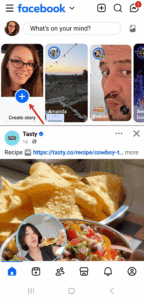
1. Start a Story
Open the Facebook app, tap Create Story, and add a photo or video.
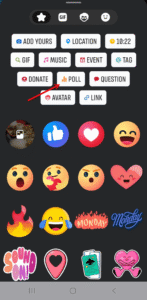
2. Add the Poll sticker
Next, tap the sticker icon then tap Poll.
Type your question and your two answer options, then share it to your Story.
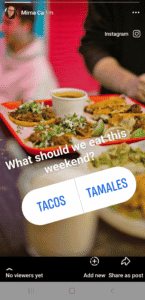
That covers Facebook’s native option for creating a basic poll. If you want to create a more advanced poll with control over the design, a poll that stays live as long as you want, and has analytics, the Opinion Stage method below gives you more options.
How to Create a Poll on Facebook With Opinion Stage
With Opinion Stage’s poll maker, you can create a fully branded poll with image or video answer options, instead of being limited to plain text choices. You can also share your poll wherever your audience is, whether that’s your Facebook feed or Page, your website, an email, or another social platform. Plus, you get a live results dashboard so you can see and analyze responses as they come in.
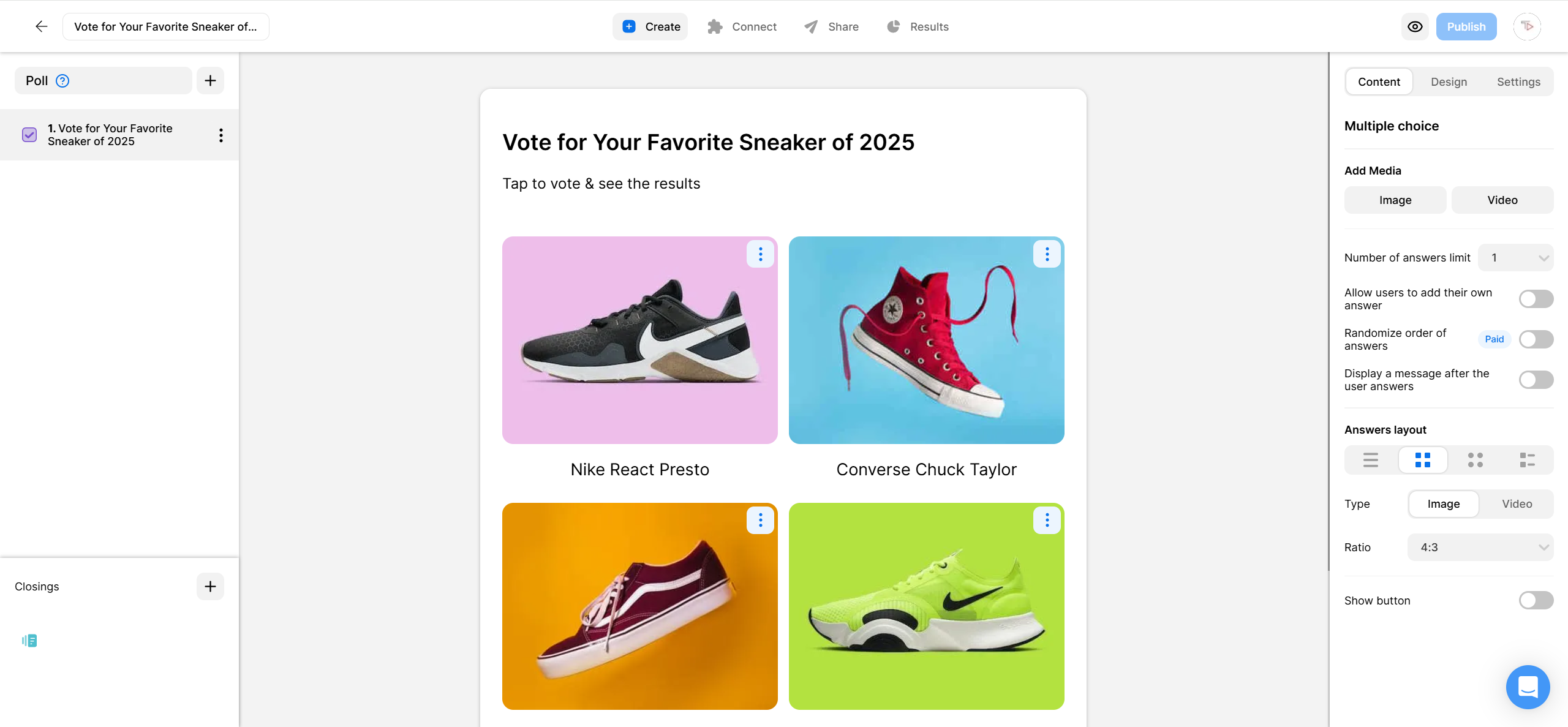
1. Create a poll
Start by creating a Facebook poll. You can add images, videos, and GIFs to question and answer options, customize the layout, and choose your unique brand colors.
2. Share your Facebook poll
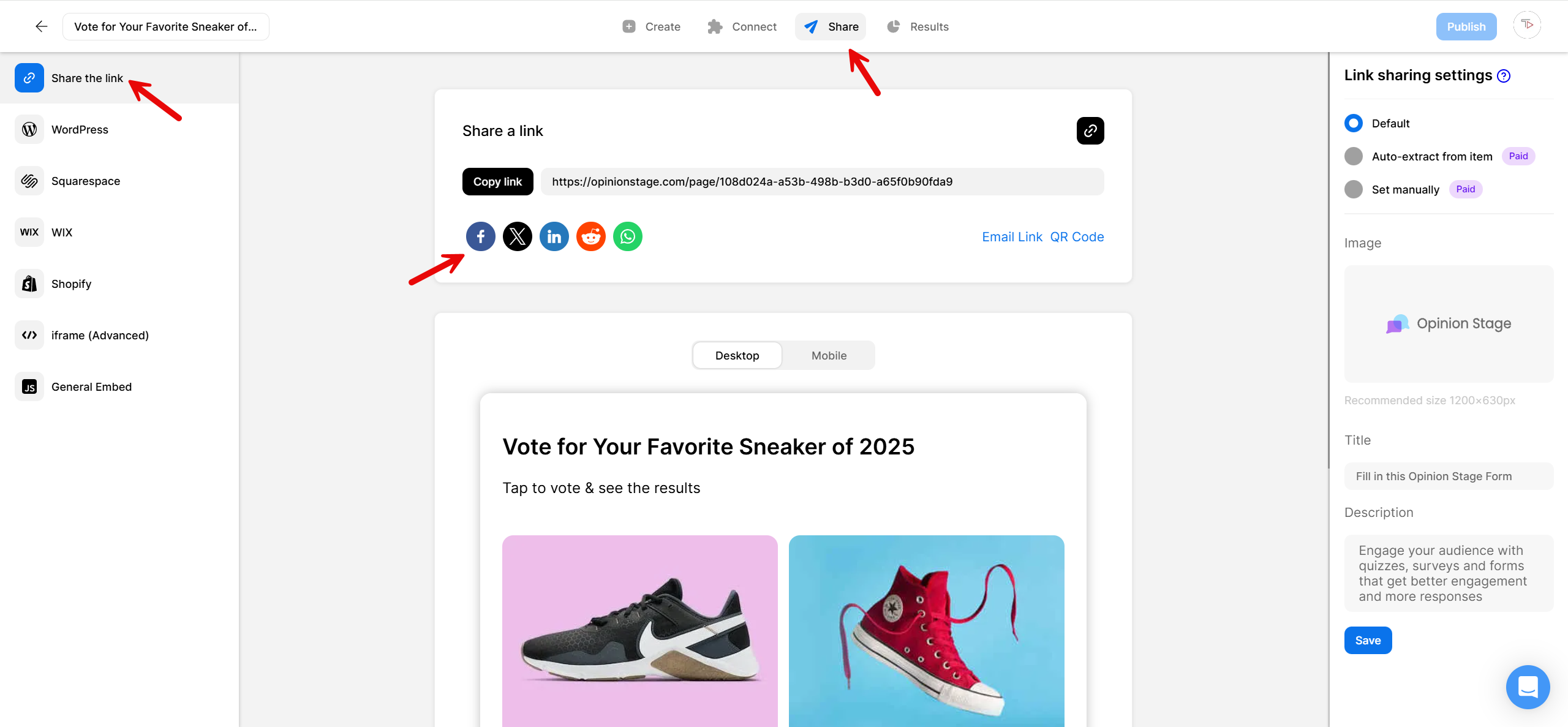
Click on the Share button at the top of your screen and select the Share the link tab. Copy the link and then paste it into a Facebook post.
You can also share the poll directly to Facebook by clicking on the Facebook icon.
And now you’re done!
Why Use Opinion Stage for Facebook Polls?
Facebook’s native polls are useful for basic questions. If you need more advanced options, here’s what you can do with Opinion Stage.
✨ Make Your Poll More Engaging – Add images or videos to your question and answer options. Customize the design to match your brand and create a more engaging poll than a basic Facebook poll.
⚡ Create a Poll in Minutes – Build and publish your poll using our user-friendly builder without needing design skills or coding.
📱 Make It Easy to Answer Anywhere – Your poll works across phones, tablets, and desktops, so people can participate wherever they see it.
📊 Turn Responses Into Useful Data – Track responses in a live dashboard and collect contact details.
🌐 Share It Beyond Facebook – Share the same poll to your Facebook feed or Page, website, email, or other social channels. You’re not limited to a Story or Group post.
See all Opinion Stage poll maker features.
How to Create a Great Facebook Poll
Whether you’re asking for opinions, testing an idea, or simply trying to spark conversation, a good poll should be easy to understand and interesting enough to answer. These tips can help you get more responses and better insights from your poll.
Ask a Question That Has a Purpose
Give people a reason to vote by asking about something that matters to them or helps you make a decision. You can ask your audience which product they’d like to see next, which feature they prefer, what content they want more of, or simply get their opinion on a topic related to your brand.
Keep the Question Short & Clear
Make your question easy to understand at a glance. Skip unnecessary details and use simple, conversational language. If someone has to read the question twice to understand it, it’s probably too complicated.
Make the Answer Options Easy to Choose
Give people clear options that cover the likely answers without overlapping. If none of the choices feels right, people may skip your poll altogether. For questions where it makes sense, consider adding an “Other” option.
Decide Whether to Allow Repeat Votes
Whether you should allow people to vote more than once depends on your goal. If you’re running a poll to encourage engagement, repeat voting can add to the fun. If you’re collecting data you plan to analyze, limiting repeat participation can give you more reliable results.
Add Images or Videos When They Add Value
Visual answer options can make a poll more engaging and help people understand their choices. Use images or videos when they add context or make the question more interesting, rather than adding them just for the sake of having a visual.
Show Results After People Vote
Letting people see how others answered gives them an extra reason to participate. Consider displaying the results after someone submits their vote so they can compare their answer with the rest of your audience.
FAQ
Are Facebook polls anonymous?
Facebook’s native polls aren’t anonymous. In Facebook Groups, the poll creator can see who voted for each option. With Story polls, the creator can see who viewed the Story and who interacted with it. If you want respondents to vote without revealing their identity, a dedicated poll maker like Opinion Stage can offer anonymous responses.
Does Facebook have a built-in poll feature?
Yes. Facebook gives you several ways to create a poll, including the poll sticker in Stories, polls in Facebook Groups, polls in Messenger group chats, and polls for Events. Story polls are the most limited: they’re mobile-only, allow up to two answer options, and disappear after 24 hours. The other options can last longer and offer more flexibility, but Facebook’s native polls still have limited branding and analytics, don’t let you capture lead information, and can’t be embedded on your website or other channels.
If you want a custom-designed poll with a shareable link, more detailed results, and lead capture, a dedicated tool like Opinion Stage gives you more flexibility.
Can I create a poll directly on my personal Facebook profile?
Not as a regular feed post. Facebook doesn’t offer a native poll option for standard posts on a personal profile, although you can create a poll in a Facebook Story. You can also create polls in Groups, Messenger group chats, and Events.
If you want to add a poll to a regular post on your personal profile, you’ll need to create it with a dedicated poll maker like Opinion Stage and share the poll link in your post.
Does Facebook still have polls?
Yes. It just isn’t one single feature. The poll option shows up inside Groups, on Stories, in Messenger group chats, and on Events, but not as a standalone tool or on a personal profile post, which is why it can seem like it’s missing.
Other Ways to Engage Your Facebook Audience
A poll isn’t the only way to engage your Facebook audience. Depending on what you’re trying to learn or collect, one of these might be a better fit:
- Facebook Survey: For when one question isn’t enough. Ask several questions, add skip logic, and get more detailed feedback.
- Facebook Quiz: A fun, interactive format built for engagement and lead gen.