
How to Create a Google Forms Quiz in 2026 (Step-by-Step)
Google Forms is one of those tools almost everyone has used at some point — it’s free, easy to set up, and works well for simple quizzes and surveys. But if you need more than the basics, Opinion Stage is a dedicated online quiz builder used by 100,000+ marketers, publishers, and businesses to create quizzes with AI generation, skip logic, lead capture, and rich analytics. In this guide, we’ll walk you through how to create a quiz in Google Forms step by step, then show you what’s possible with a more powerful quiz creation tool.
Take a Shortcut
How to Create a Quiz in Google Forms
1. Go to Google Forms
Start by opening Google Forms from your Google account. Click Blank form to create a new basic form, or choose a template if you want a head start.
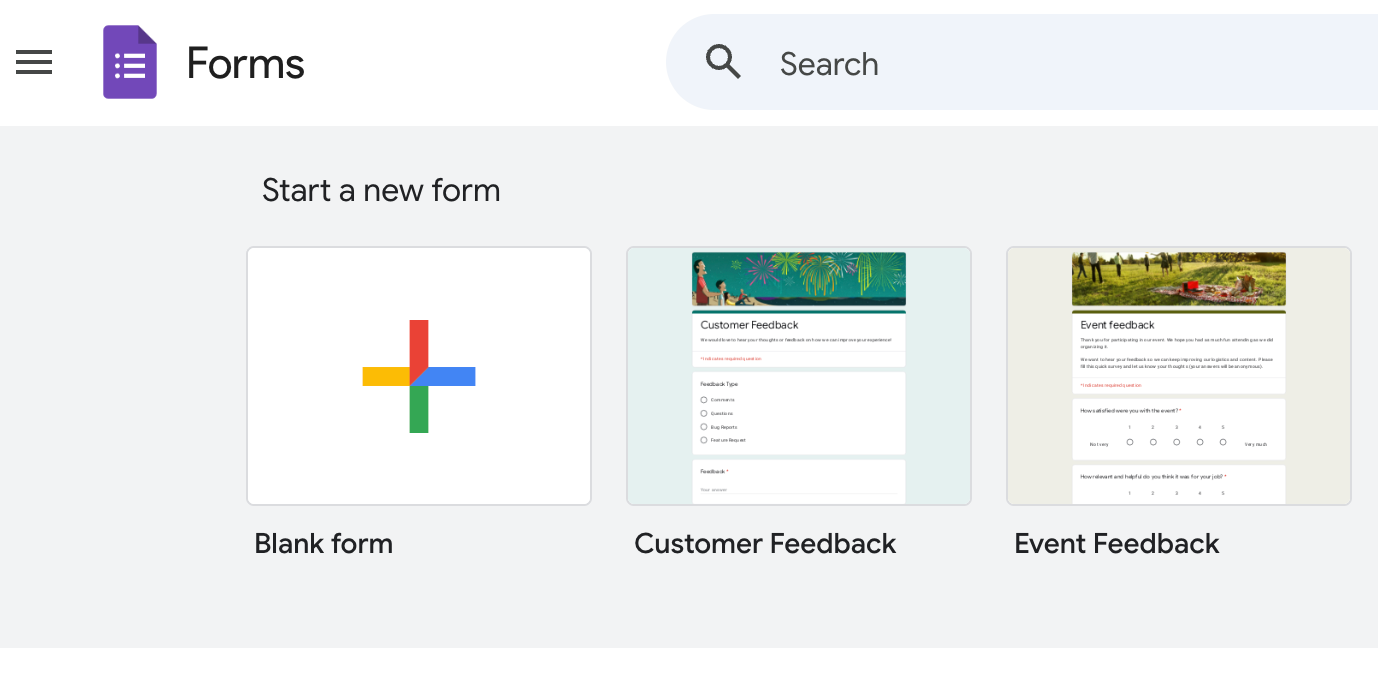
At this point, you’re working with a standard form, not a quiz yet.
2. Turn on Quiz Mode
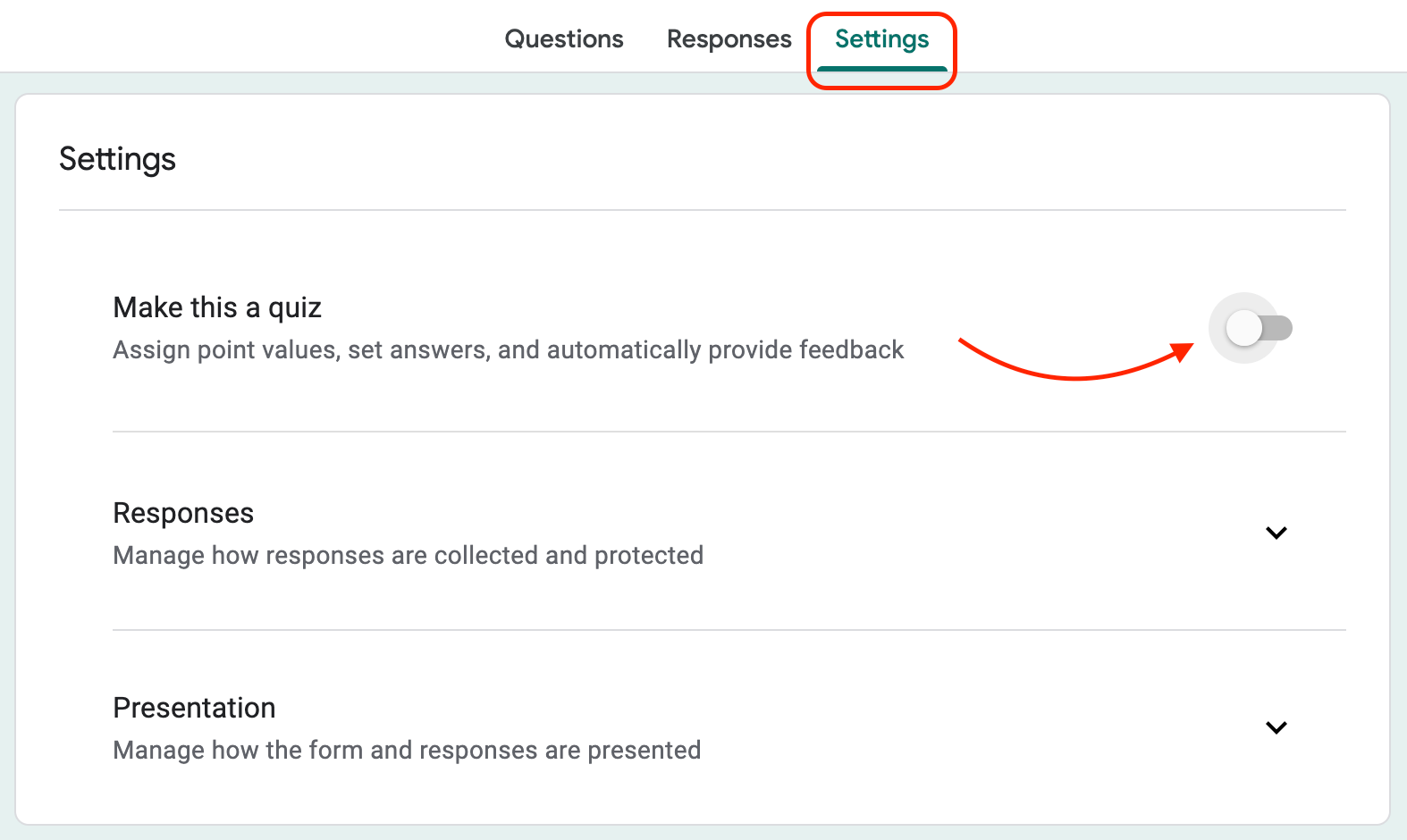
To convert a form to a quiz, open Settings and toggle Make this a quiz. It enables quiz mode and allows you to assign point values, mark correct answers and missed questions, and automatically provide feedback.
3. Add questions
Now it’s time to add your quiz questions. To insert a new question, click the “+” icon on the right panel. If you need more questions, just keep clicking the add question button.
Next, choose the question type from the dropdown menu next to the question title. Google Forms supports multiple choice, checkboxes, dropdowns, and other question types. Enter your question text and provide possible answers if applicable.
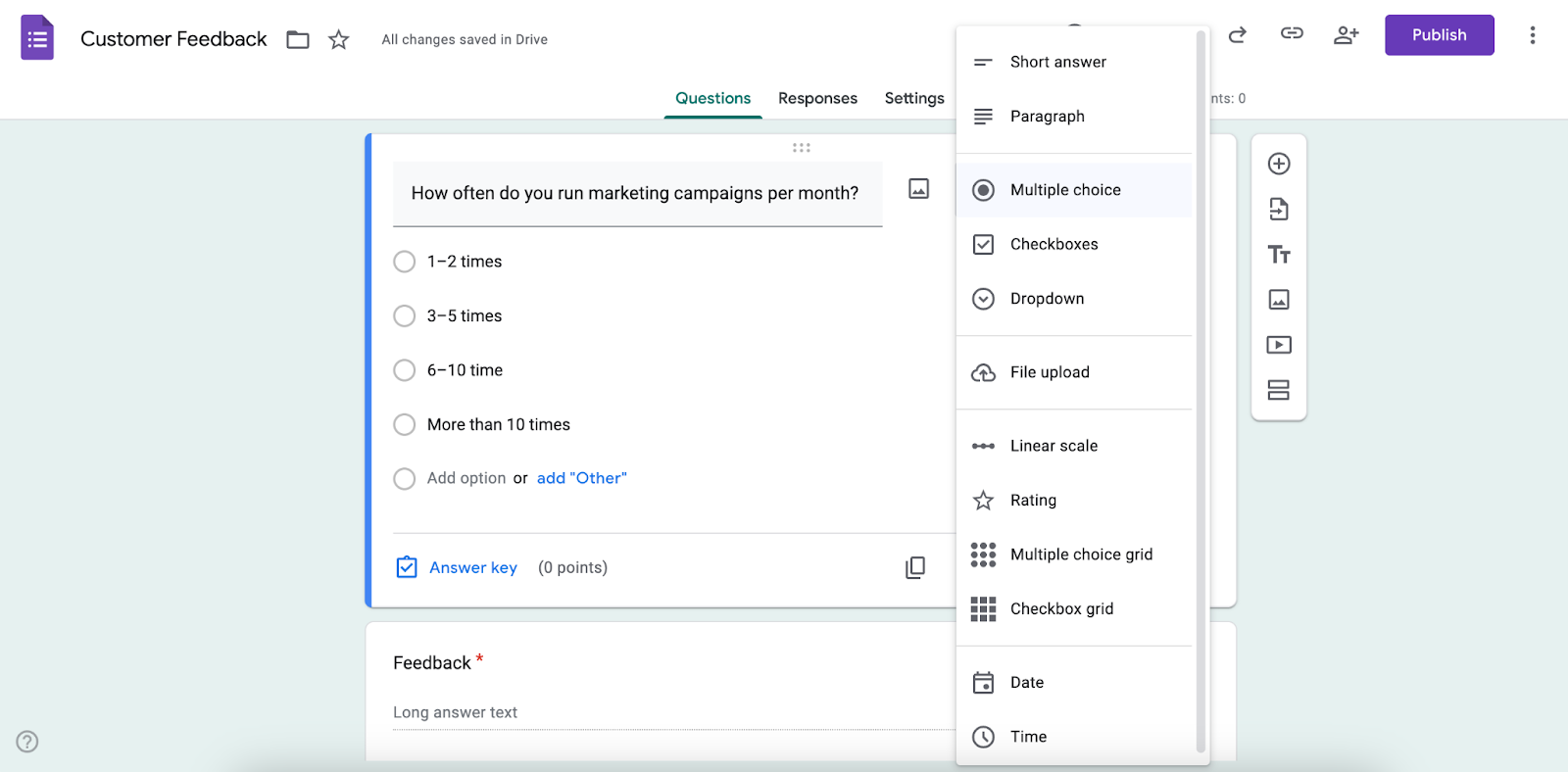
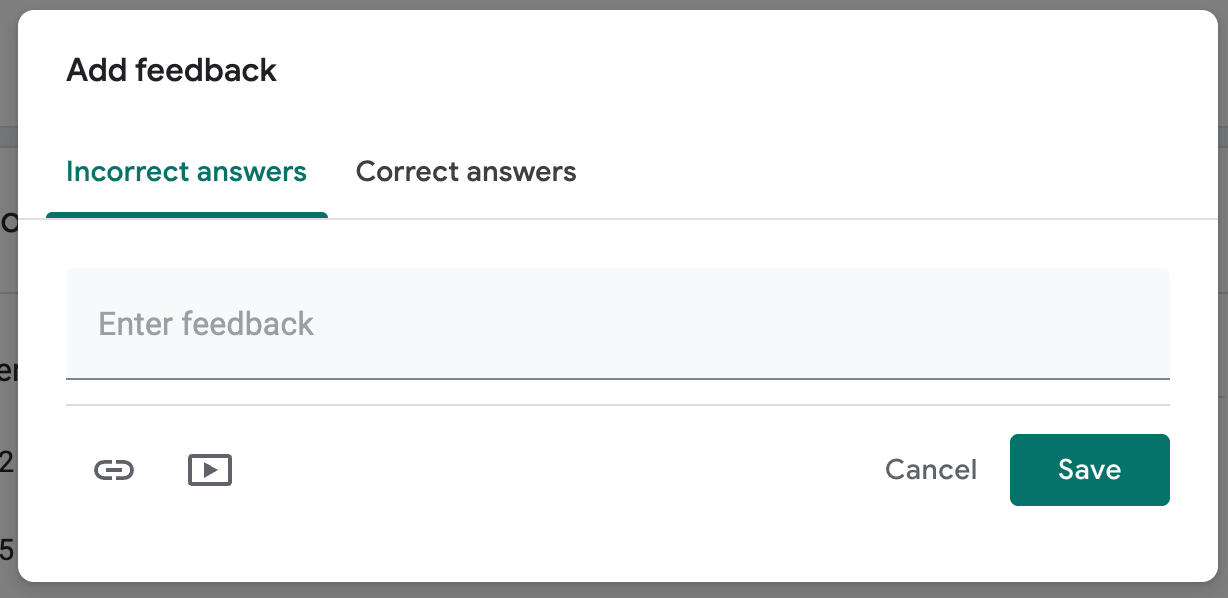
To set up scoring, click Answer key to mark the correct answer(s), assign point values, and add optional feedback for correct or incorrect responses.
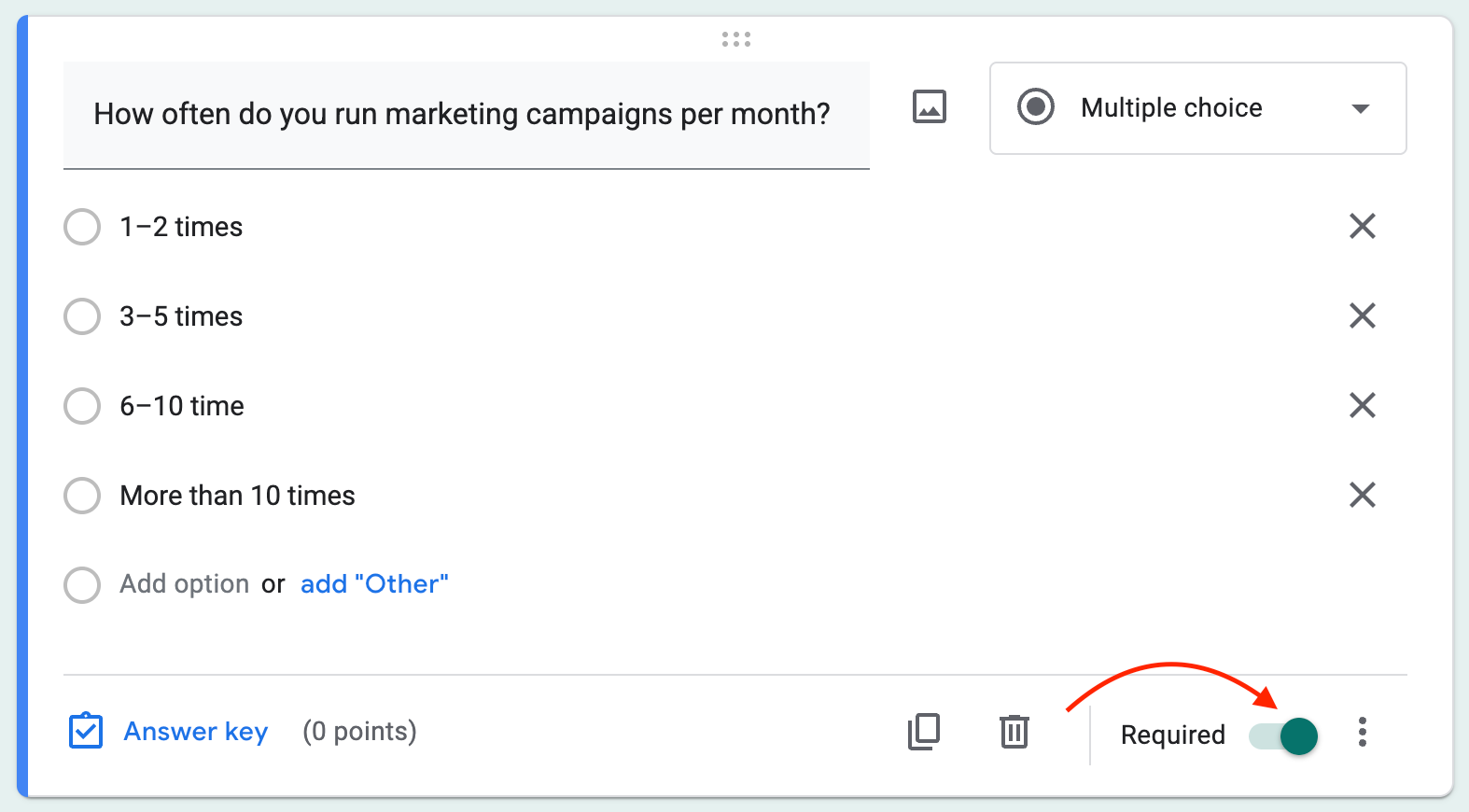
Finally, to ensure participants answer a question before moving on, toggle the Required option.
4. Customize your quiz
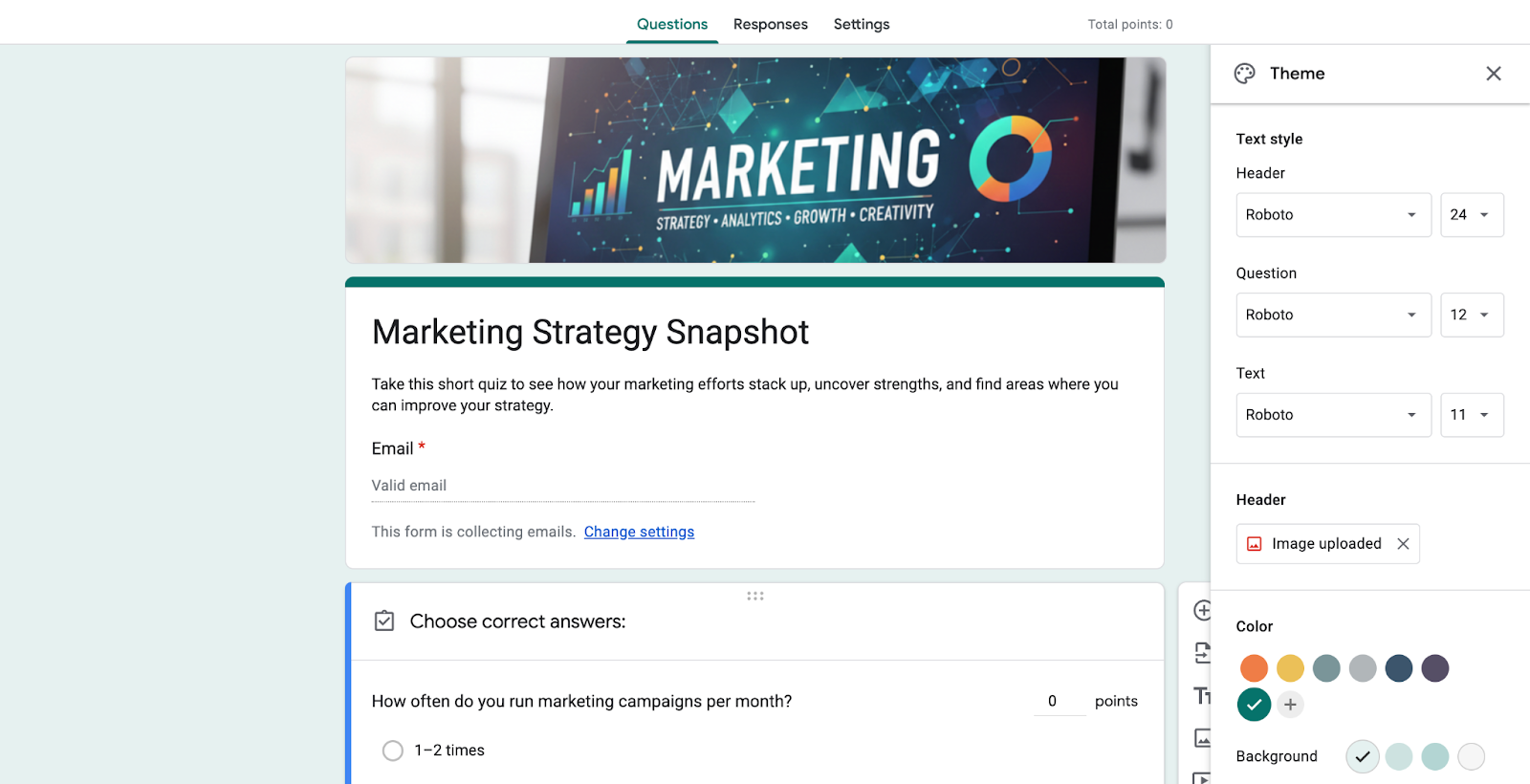
Google Forms lets you customize the overall look of your quiz to match your needs. You can update the top banner by choosing an image from Google’s built-in gallery or uploading your own. It’s also easy to change the background color and adjust fonts. While the customization options are limited, they’re enough to keep the look clean and consistent.
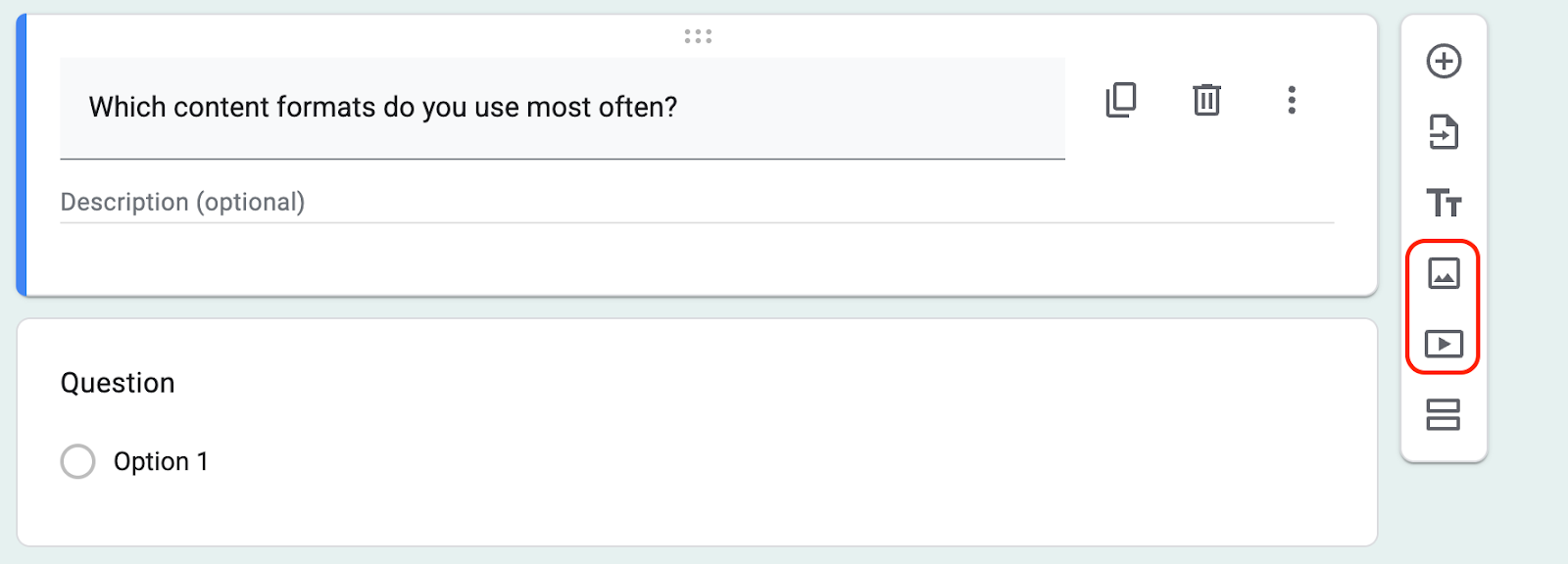
You can also add images or videos to individual questions by using the corresponding icons on the sidebar. This is especially useful for adding context or simply making the quiz more interactive.
5. Publish & share
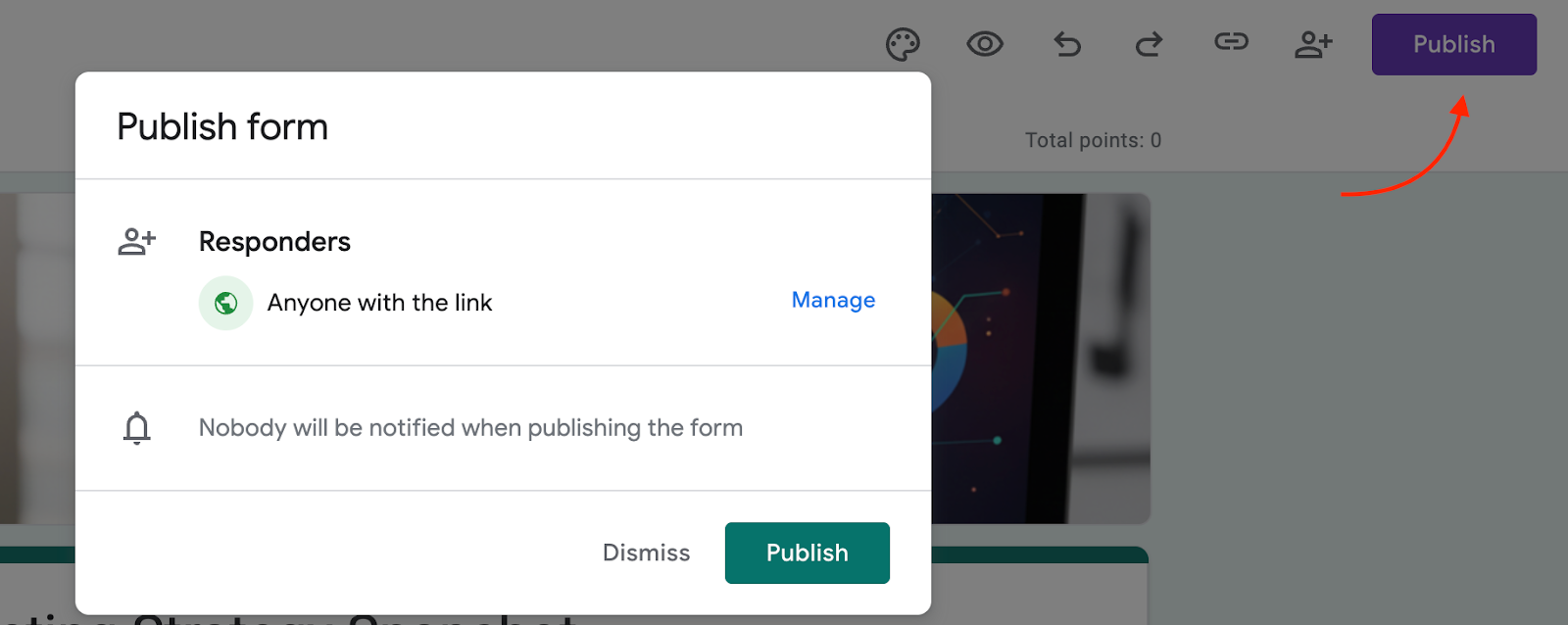
When your quiz is ready, click Publish in the top-right corner. A pop-up will appear. Here you can manage respondents and confirm publishing.
After publishing, you’ll get a shareable link that you can add to emails or share anywhere else you want.
6. Analyze responses
To review your results, open the Responses tab at the top of your quiz. Here, you can see individual quiz responses and overall performance.
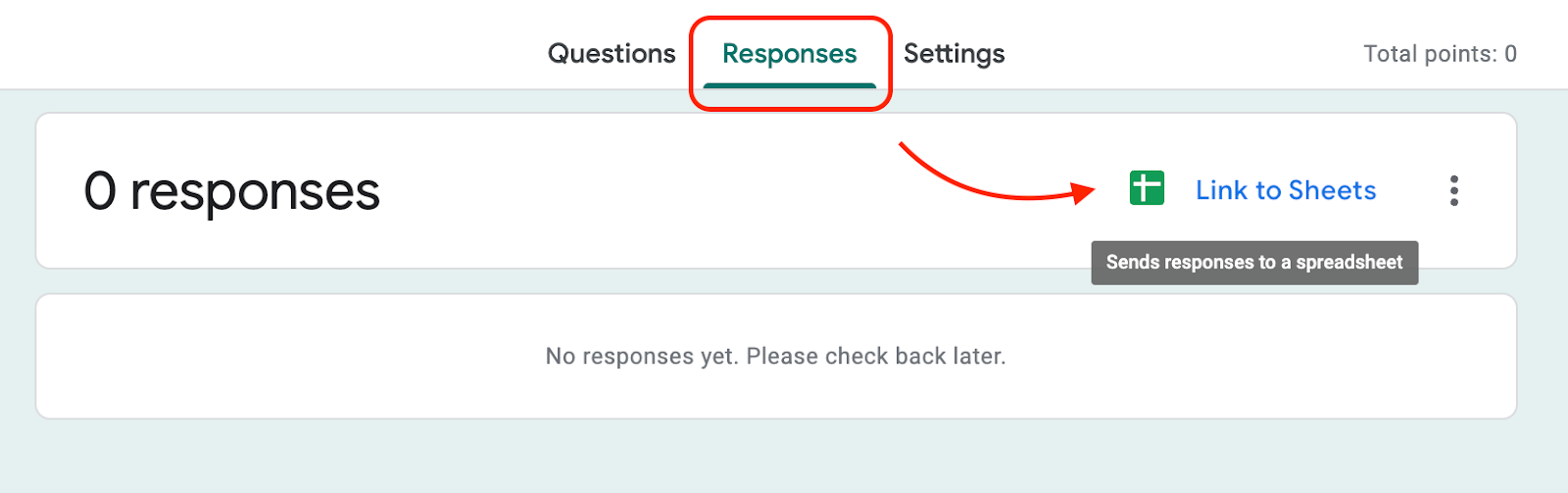
If you want to dig deeper into the data, you can export quiz responses to Google Sheets for further analysis and reporting.
This level of reporting works well for simple quizzes and basic assessments. But if you’re looking for more advanced features like conditional logic or deeper analytics, you’ll need a more powerful quiz tool like Opinion Stage.
How to Create a Quiz With Opinion Stage
1. Create a quiz
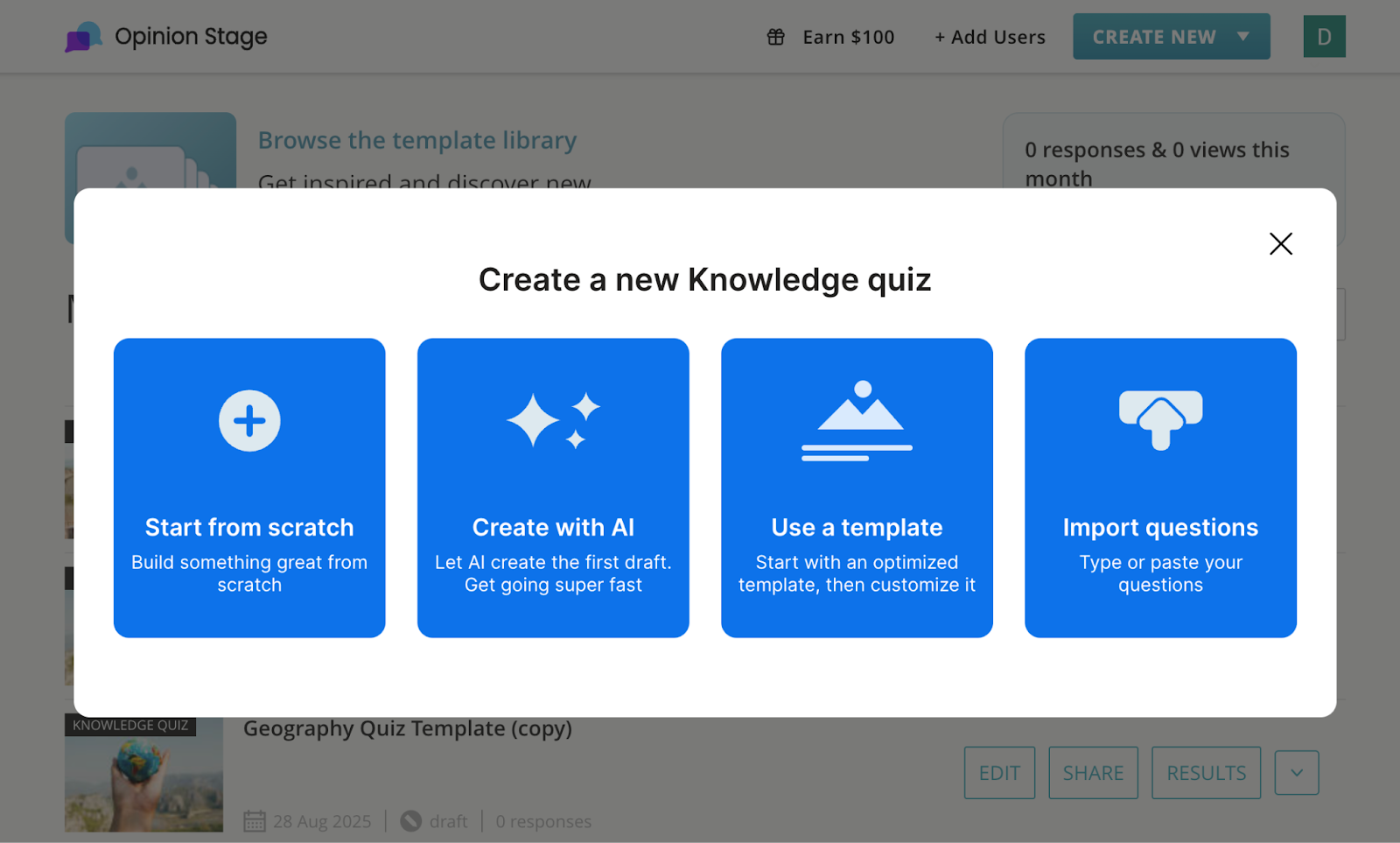
When you create a quiz with Opinion Stage, you have a few different ways to get started. You can build a quiz from scratch, choose a ready-made template, import questions, or use the AI quiz maker to generate a quiz in minutes.
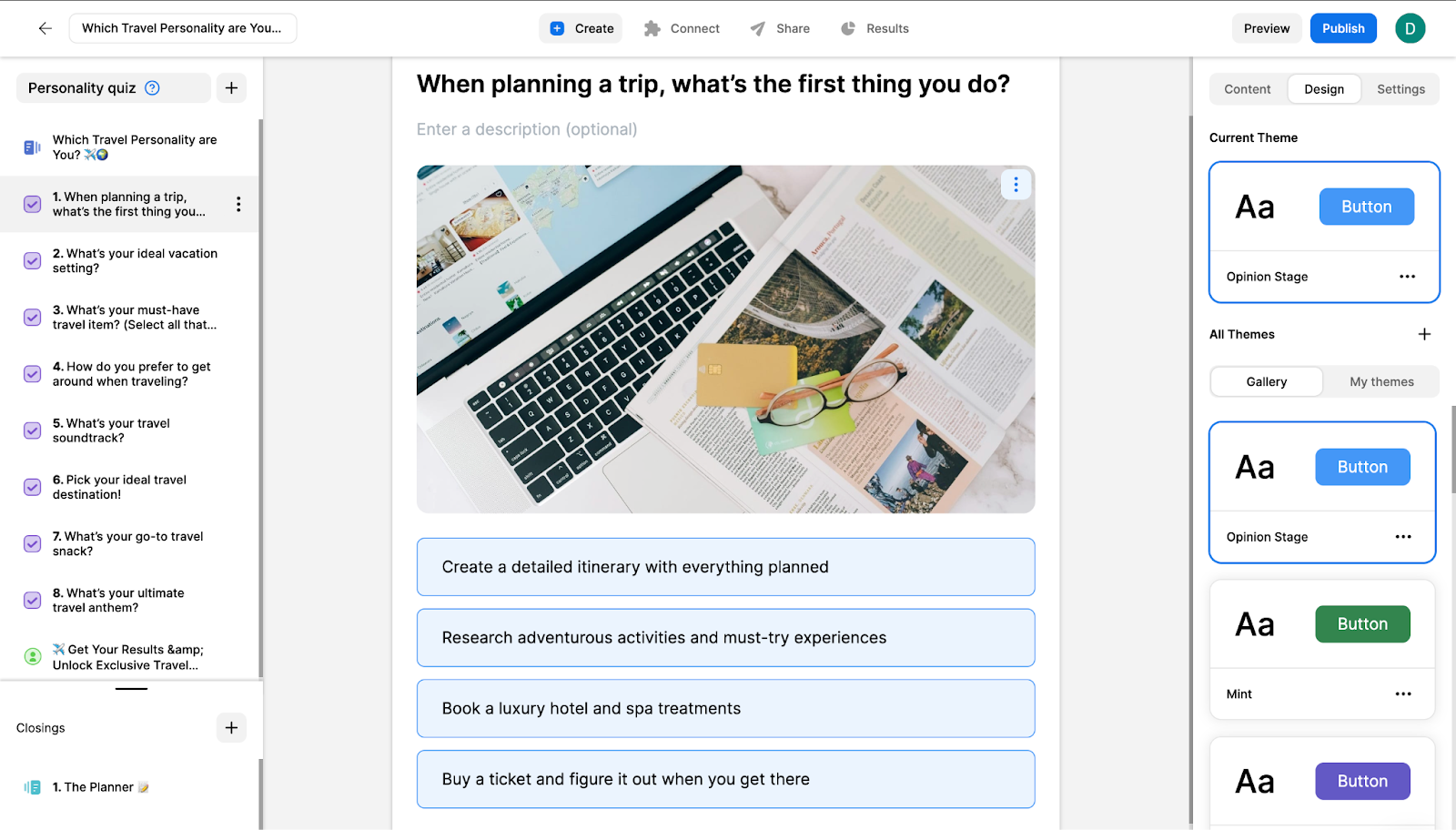
Once you’re in the builder, you can customize the design by adjusting the color scheme, buttons, and overall layout. If you want to completely customize your quiz, you can add custom CSS and your own logo.
You can also add images and videos to questions and answers, making your quiz more engaging. In the settings, you can define the quiz language and apply skip logic to control how users move through the quiz.
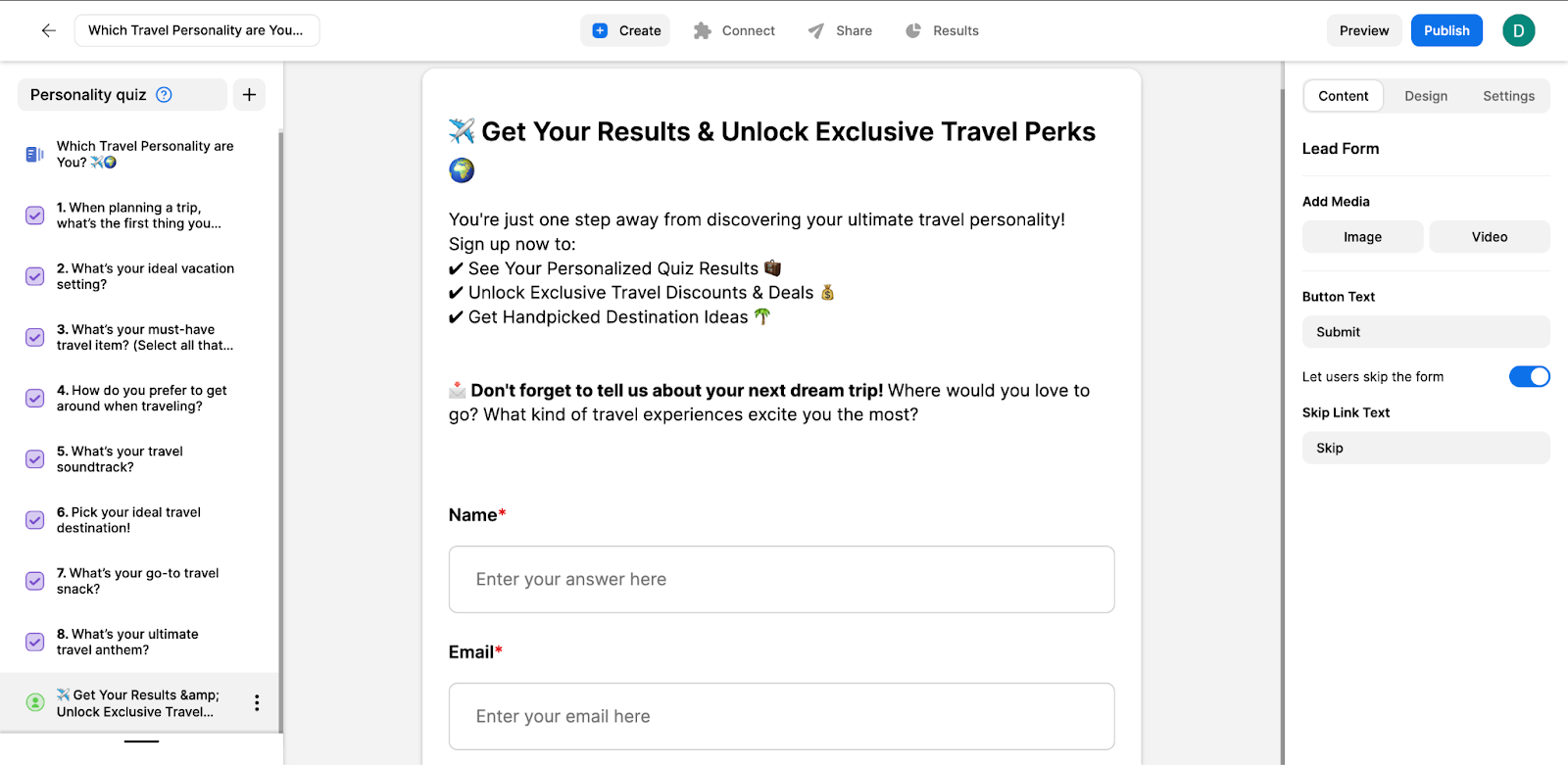
For the results page, you can create custom result cards and add a lead form to capture a respondent’s name and email. This makes it easy to turn quiz engagement into meaningful leads.
2. Share your quiz
Opinion Stage offers multiple ways to share your quiz, so it fits seamlessly into your workflow. You can generate a shareable link to add your quiz to emails or post directly to social media platforms. Plus, you can share your quiz using a QR code.
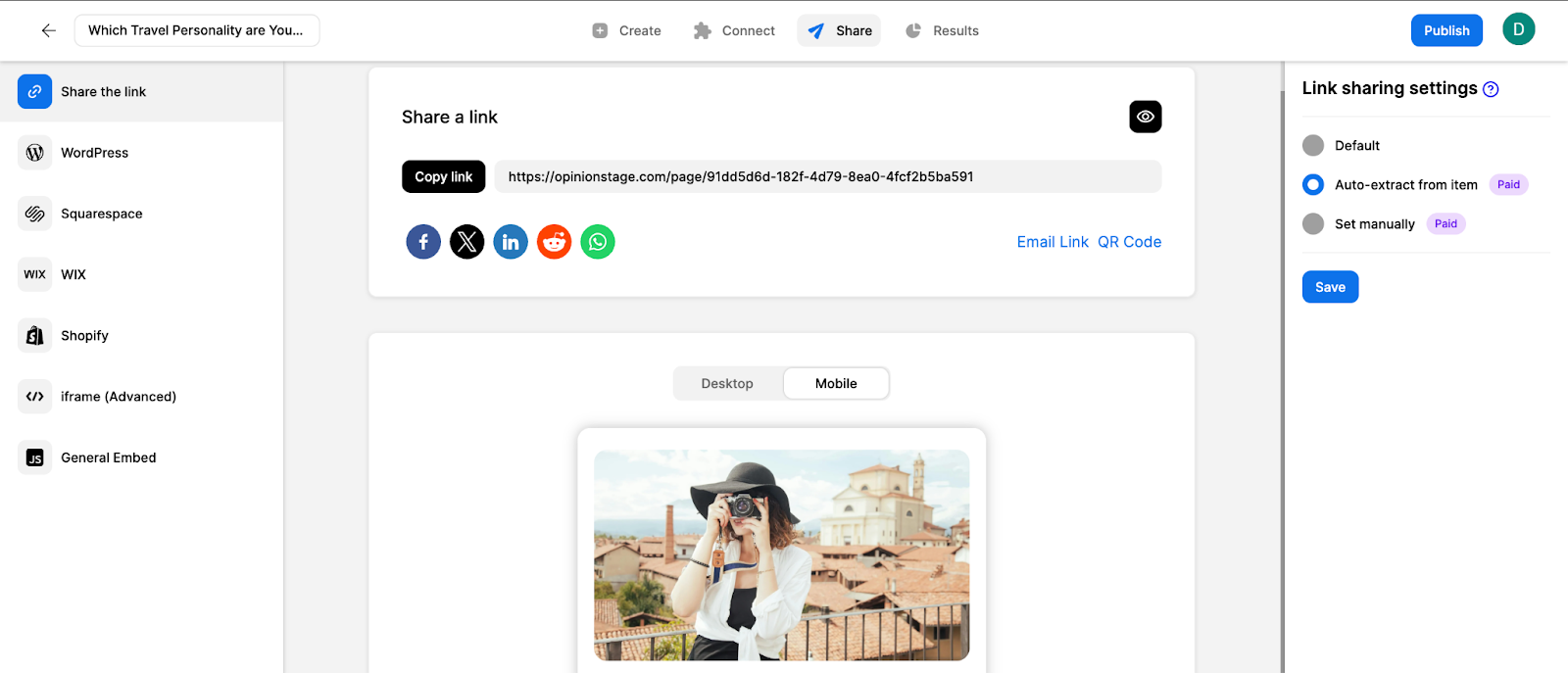
If you want to embed the quiz on your website, Opinion Stage provides ready-to-use embed options with clear instructions for platforms like WordPress, Squarespace, Wix, and Shopify. You can also copy the code for an iframe or use a general embed option to place the quiz exactly where you want.
3. Keep track of the results
Opinion Stage provides detailed performance reports that help you understand how users interact with your quiz. In the Performance section, you can track key metrics such as views, starts, responses, average completion time, engagements, and CTA clicks.
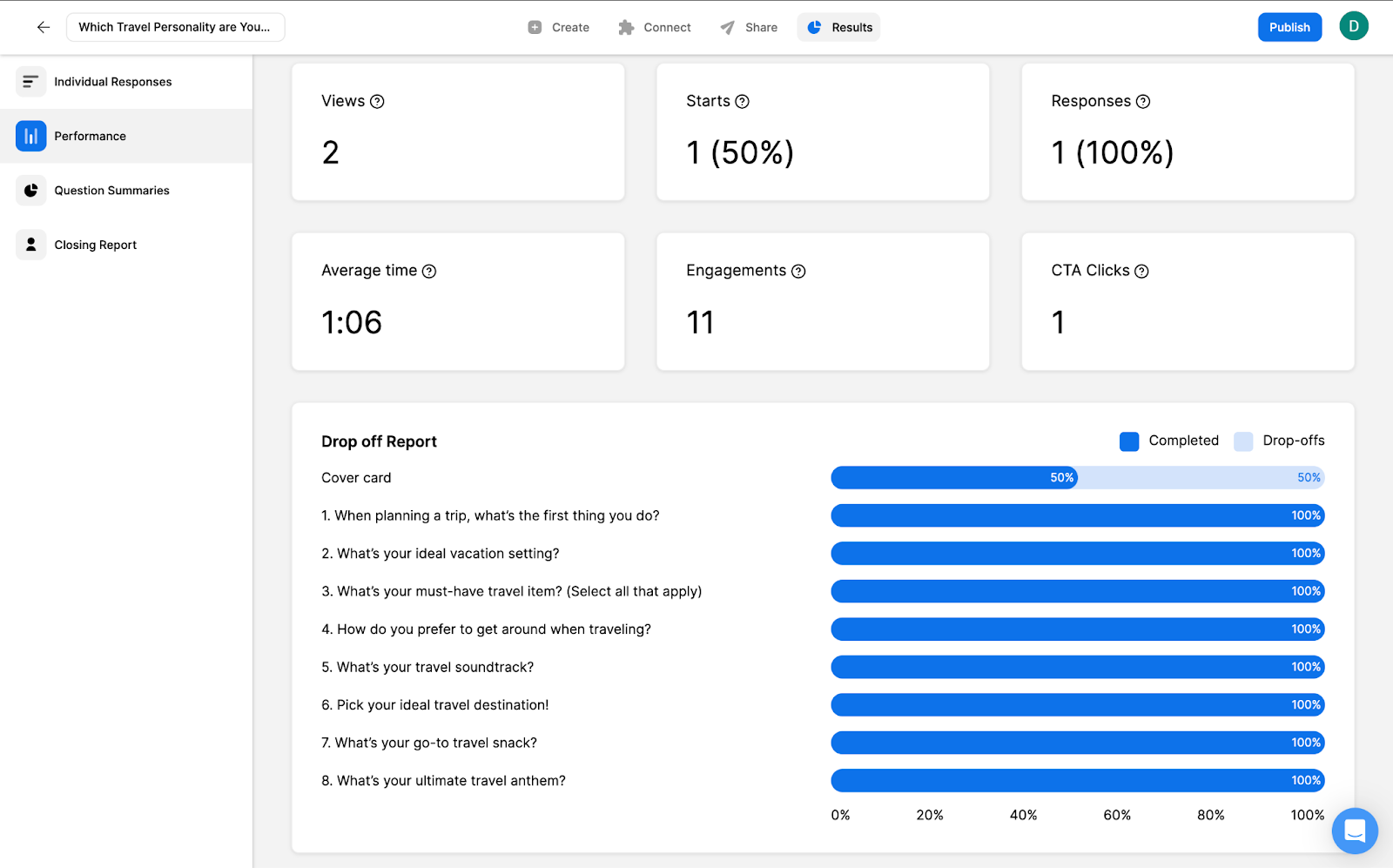
In addition, the Question Summaries section shows how users answered each question, while the Closing Report helps you evaluate how people interact with your final screen or results. Together, these insights make it easy to optimize your quiz and improve results over time.
And that’s it. Now you’re done!
What Google Forms Can & Can’t Do
Google Forms is a solid tool for basic quizzes, but it has clear limits. Here’s a quick breakdown:
What Google Forms Can Do
✅ Create simple quizzes
You can build quizzes using multiple-choice or short-answer questions and automatically grade right and wrong answers. It’s ideal for simple tests or assessments.
✅ Help you analyze basic results
Google Forms shows summary charts and individual answers. This is enough for quick insights.
✅ Support team collaboration
You can collaborate with team members in real time when creating or editing quizzes, just like in other Google tools.
✅ Integrate natively with Google Sheets
All responses can sync directly to Google Sheets, making data management straightforward.
Google Forms is great for simple quizzes, but it falls short once you need more control or a refined experience.
What Google Forms Can’t Do
❌ Not built for advanced quiz creation
In Google Forms, you can’t add videos or images to answer options, the question types are limited, and there are no AI quiz generation tools to speed up quiz building.
Opinion Stage advantage: Opinion Stage is a dedicated quiz creation tool that supports image and video answers, a wide variety of question types, an AI quiz generator, and 100+ ready-to-use templates – making it significantly faster and more flexible than Google Forms.
❌ Very limited branding & design control
You can only make small changes to colors, fonts, and header images, so customization options are very limited.
Opinion Stage advantage: Opinion Stage gives you full design control – including custom CSS and white labeling- so every quiz can be fully on-brand, something Google Forms can’t offer.
❌ No personalized question paths or results
There’s no skip logic and no way to create custom result pages, so you can’t build personality quizzes or provide product recommendations.
Opinion Stage advantage: Opinion Stage supports advanced skip logic and custom result pages, making it the right tool for personality quizzes and product recommendation quizzes where each user should see a different outcome.
❌ Not designed for lead generation
You can collect email addresses in Google Forms, either through its built-in setting or by adding a short-answer question. However, this approach is not optimized for conversions, since email collection can’t be tied to results, incentives, or placed strategically within the quiz flow.
Opinion Stage advantage: Opinion Stage includes built-in lead capture forms that can be placed before or after results – where they convert best – with direct integrations to Mailchimp, Zapier and other marketing tools for automated follow-up.
❌ Simplified analytics
Google Forms provides only basic charts and summary data, which limits your ability to gai deep insights from quiz results.
Opinion Stage advantage: Opinion Stage’s analytics dashboard gives a full view of the quiz performance, including result trends, per-question drop-off, and answer breakdowns. You also get easy exports for deeper analysis, well beyond what Google Forms provides.
❌ Limited integrations
Integrations are mostly limited to Google Sheets, restricting how you can connect quiz data with other tools.
Opinion Stage advantage: Supports 100+ integrations, including Zapier, HubSpot, Mailchimp, and many more, giving you greater flexibility to connect your quizzes with your marketing stack.
FAQ
Does Google Forms have a quiz maker?
Yes, Google Forms does have a quiz maker that lets you create simple quizzes. However, it’s limited to basic question types and minimal customization. If you’re looking to integrate advanced logic and custom branding, the Opinion Stage quiz maker offers more flexibility.
Can you create a timed Google Forms quiz?
No, you can’t create a timed Google forms quiz, since the platform doesn’t support this feature. If timing is important, you’ll need to rely on add-ons or use a platform like Opinion Stage, which natively supports scheduling a quiz closing date. Opinion Stage also has an option that allows you to track how long it took participants to complete the quiz.
Can you create a personality quiz in Google Forms?
No, you can’t create a personality quiz in Google Forms. Since the platform doesn’t support custom result pages, it makes it difficult to create true personality quizzes. You’ll need a tool that promotes personalized outcomes based on users’ answers, such as Opinion Stage.
Can you create a matching quiz in Google Forms?
No, you can’t create a matching quiz in Google Forms. The tool doesn’t offer a true matching question type. While you can try to recreate it using multiple-choice questions, the experience is limited and not very intuitive.
What’s the best alternative to Google Forms for quizzes?
Opinion Stage is one of the best alternatives to Google Forms for quizzes. Unlike Google Forms, Opinion Stage is a dedicated quiz creation tool that supports skip logic, personality quiz outcomes, custom result pages, and built-in lead capture forms. It also offers an AI quiz generator, 100+ ready-made templates, and integrations with tools like Mailchimp, HubSpot, and Zapier. The platform works well across marketing, education, and lead generation use cases and is used by 100,000+ creators worldwide.
How do I create a quiz with scoring and lead capture?
Google Forms supports basic scoring but doesn’t offer built-in lead capture tied to quiz results. For a quiz with both scoring and lead capture, Opinion Stage is a better fit — it lets you assign point values to answers, display personalized result pages, and place a lead form strategically before or after results are shown. Captured leads sync automatically with tools like Mailchimp and HubSpot, making it easy to follow up based on how someone scored.
Ready to get started?
Make a Free Quiz