
Blogger Poll Maker: Interactive Polls for Your Blog
Add visual, interactive polls to any Blogger post. Customize the design to match your blog, use images or videos as answers, and embed in a few clicks. No code required.
- ✓ Free to use
- ✓ No credit card needed
How to Add a Poll to a Blogger Post
Blogger’s built-in poll widget supports only text answers, with no customization options or way to export results. For interactive and visual polls that look like part of your blog, a dedicated poll maker is the way to go.
Here’s how to create a visual, interactive poll for your blog with Opinion Stage and embed it in any Blogger post.
1. Create your poll
Start by creating a Blogger poll. You can create one from scratch, from a template, or using our AI builder. Add images or videos, customize any way you like, and click Publish.
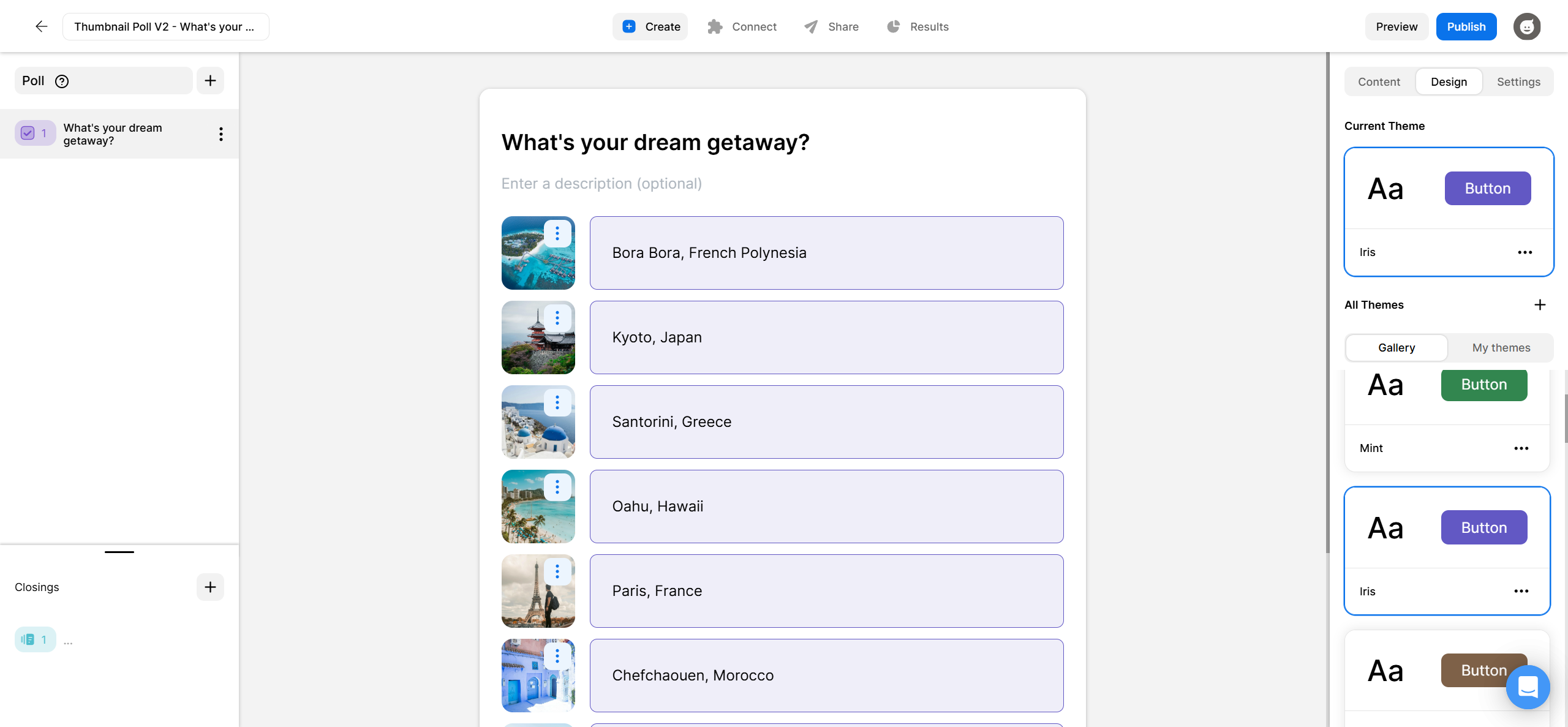
2. Copy the embed code
Click on the Share button that’s located at the top of your screen. Select the General Embed tab and copy the code.
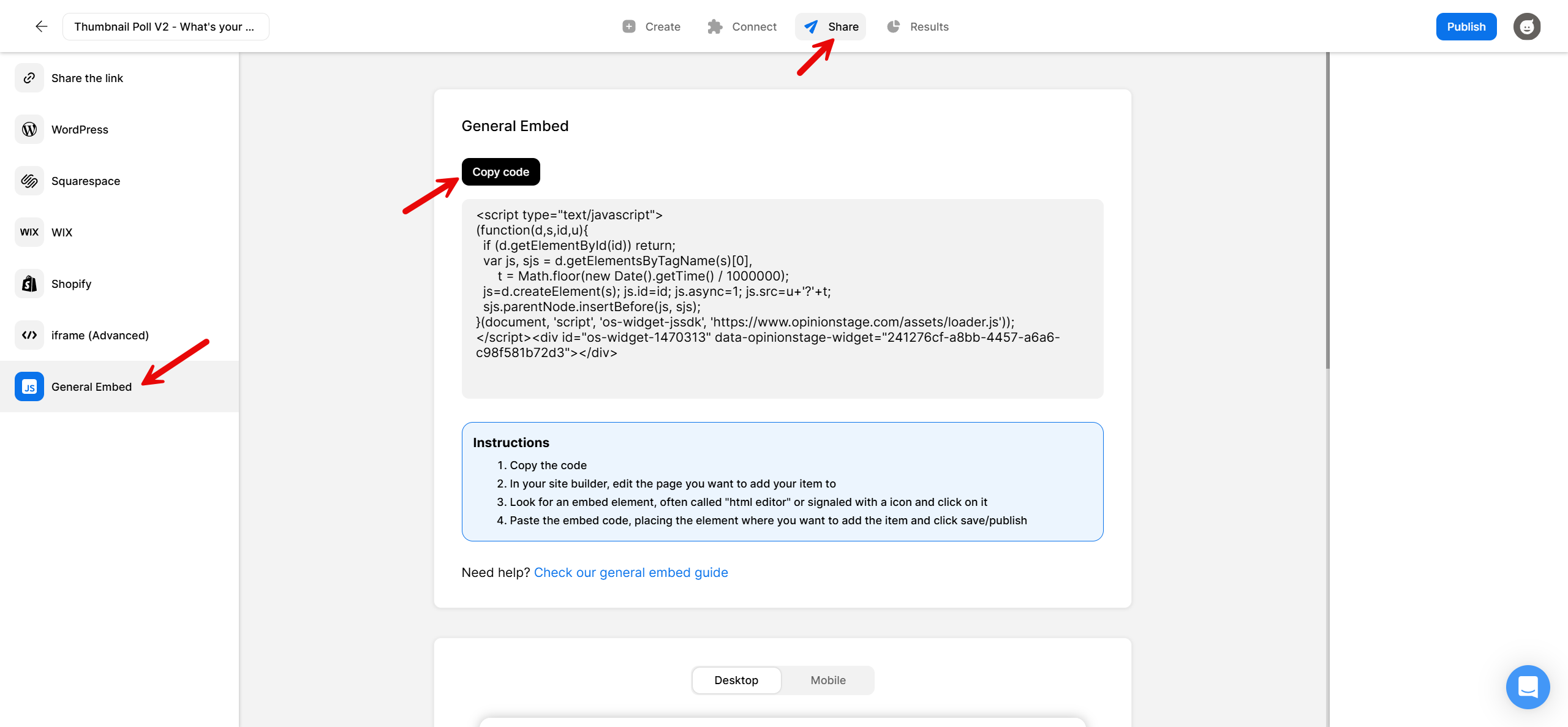
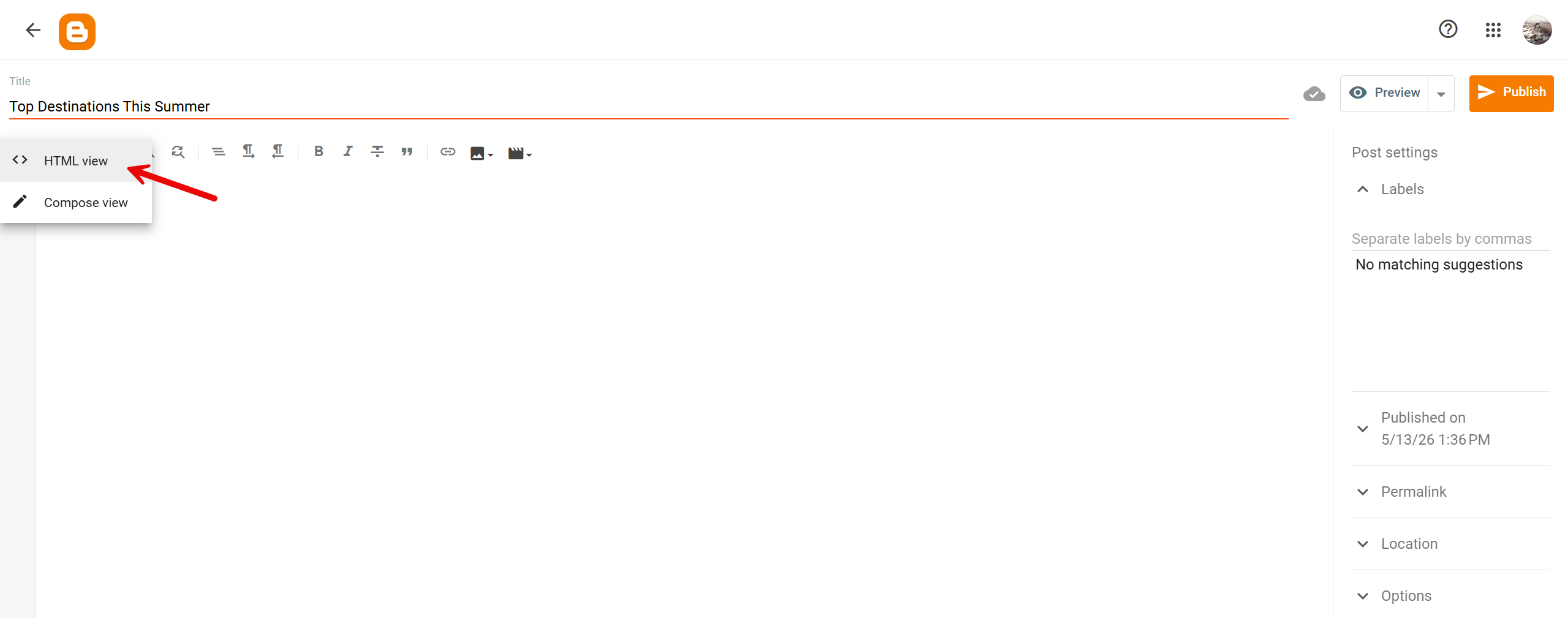
3. Add your poll to Blogger
Open your account and go to the post/page editor. Click on the editing pencil icon on the left and switch to HTML view.
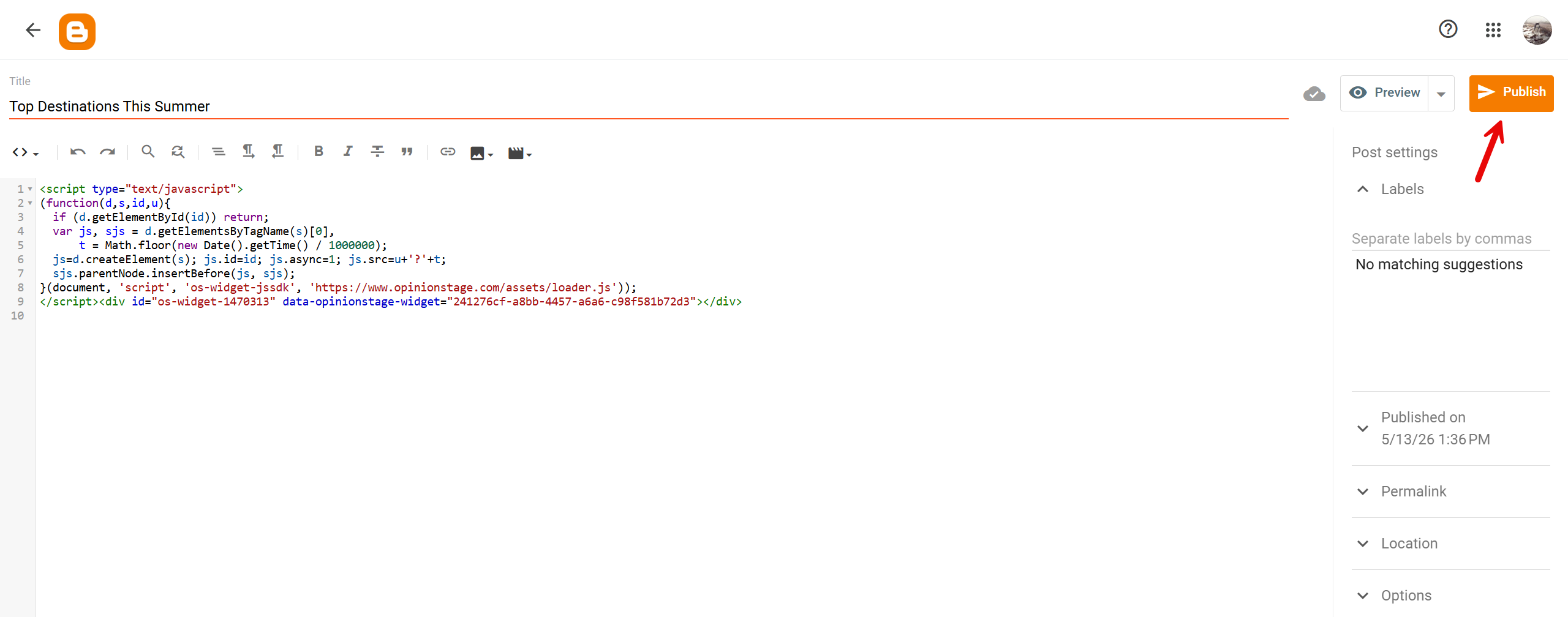
Paste the script code you copied into the body of the post and click on Preview or Publish.
It should look something like this:
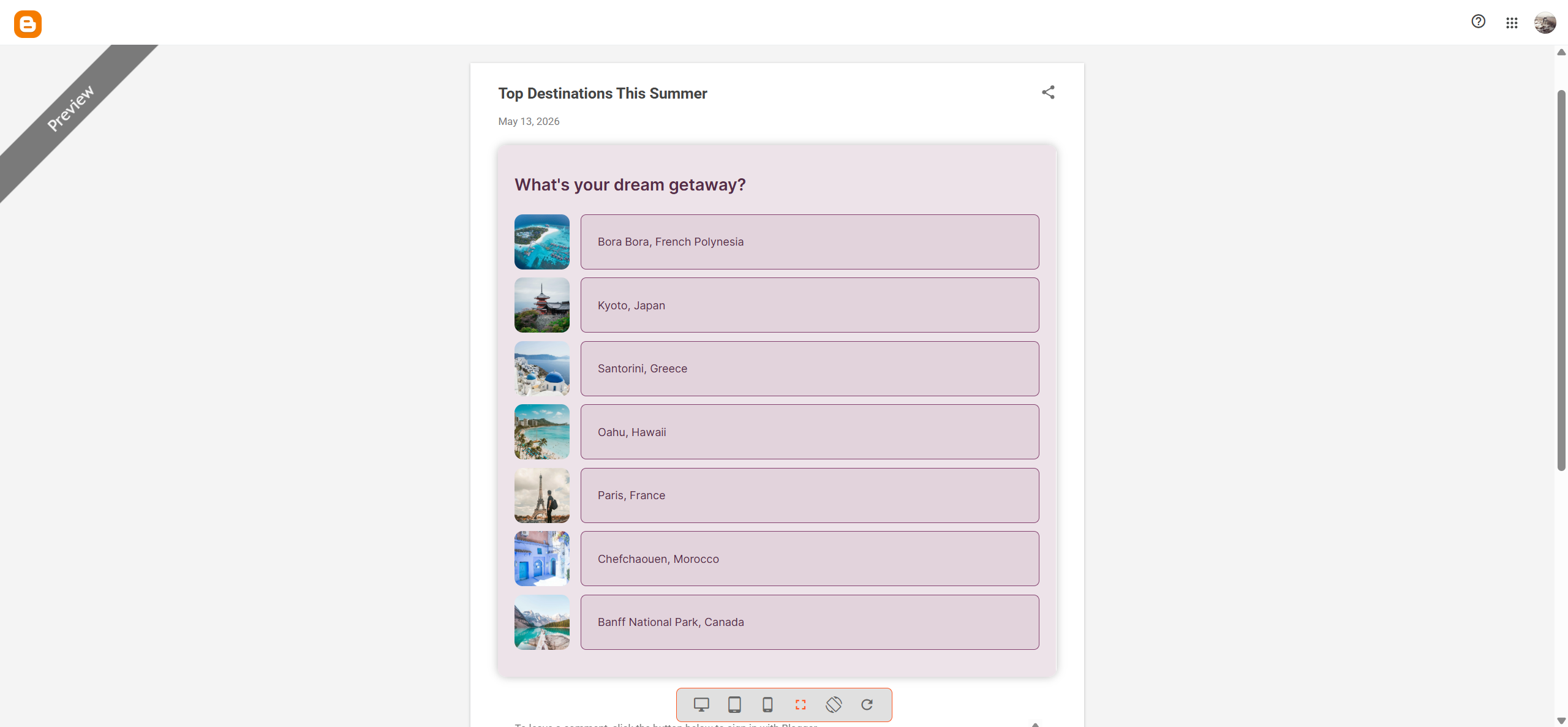
And now you’re done!
Why Use Opinion Stage’s Poll Maker on Blogger
Opinion Stage gives your Blogger polls image and video answers, custom design, and embeds that work inline in any post.
- Visual question and answer choices: Replace plain text options with images, GIFs, or videos. Visual polls grab attention faster, are easier to answer on mobile, and consistently attract more votes than text-only polls.
- Designs that match your blog: Customize colors, fonts, button styling, and layout so your poll fits the rest of your blog.
- Embed inline in any post or page: Drop the poll exactly where you want it to appear in your content, at the top, mid-post, or at the end.
- Live, real-time results with full export: Voters see how others answered the moment they vote, or you can keep results private. Export to CSV or Excel anytime, or send results to Google Sheets and other tools.
- Reliable vote counting: Advanced voting controls help keep results accurate. You can allow single or multiple selections, let voters submit their own answer options, control when results become visible, and reduce duplicate voting with browser and IP-based protections.
- Lead capture: Add an optional lead form before results to capture contact details. Visitors are already engaged at that moment, which makes it one of the highest-converting spots for an email signup.
See all Opinion Stage poll maker features.
Best Practices for Blogger Polls
A great poll on a blog is easy to understand, quick to answer, and rewarding to interact with. Here’s how to create one that fits your post and gets readers participating.
Tie the Poll to the Post
The polls that perform best on blogs are the ones tied directly to what the reader just read. If your post is a product roundup, ask which product they’d choose. If it’s an opinion piece, ask whether they agree. The closer the poll connects to the content above it, the more likely readers are to vote.
Use Image Answers When the Subject Is Visual
For products, designs, food, travel, fashion, or anything else with a visual element, image answers consistently outperform text. They’re faster to scan, more eye-catching, and especially easy to answer on mobile, which is where most blog traffic comes from.
Show Results After Voting
One of the main reasons people vote is to see how others answered. Showing results immediately gives readers an instant reward and makes the poll feel active.
Place It Where Readers Will See It
A poll buried at the bottom of a long post often gets missed. Place it mid-post at a natural break, right after you’ve made a point readers want to weigh in on, or at the end of a roundup where you’re asking them to pick a favorite.
Blogger Poll FAQs
Does Blogger have a built-in poll feature?
Yes, Blogger (sometimes still called Blogspot) includes a built-in Poll gadget that you can add from the Layout section of your dashboard. It works well for simple text polls with single-choice or multiple-choice answers, and you can set a closing date for voting.
But if you want polls that feel more interactive and polished, the built-in option is fairly limited. It doesn’t support image or video answers, advanced design customization, data exports, or integrations. That’s why many bloggers use a dedicated tool like Opinion Stage to create more engaging polls with better audience insights.
Is there a free poll maker for Blogger?
Yes. Opinion Stage has a free plan that lets you create polls, embed them in your Blogger posts, collect responses, and view results without a credit card. Paid plans add features like custom branding and higher response limits.
Will the embedded poll work on mobile Blogger themes?
Yes. Opinion Stage polls are fully responsive. The layout adapts automatically to phone, tablet, and desktop screens. This is really important on Blogger since the majority of blog traffic comes from mobile.
Can I export poll results from Blogger?
Yes. Blogger’s native poll gadget doesn’t let you export anything, but Opinion Stage polls export to CSV or Excel from the analytics dashboard, and you can send results to Google Sheets via the built-in integrations and Zapier. You can also send the leads you collect to Mailchimp, HubSpot, ActiveCampaign, or your CRM for follow-up.
For Longer Interactions & Personalized Results, Try a Blogger Quiz
Polls are great for collecting opinions and quick votes. If your goal is deeper engagement, longer interaction times, or shareable content, a Blogger quiz can be a better fit.