
Squarespace Poll Maker: Create in Seconds
Embed visual, interactive polls on your Squarespace site in a few clicks. No code required.
- ✓ Free to use
- ✓ No credit card needed
How to Add a Poll to Squarespace
Squarespace’s built-in form blocks can collect responses, but they’re not really made for quick, engaging polls. You can’t show live results, use image-based answers, or create the kind of interactive experience that gets people to participate. If you want polls that actually drive engagement, you’ll need a dedicated poll maker.
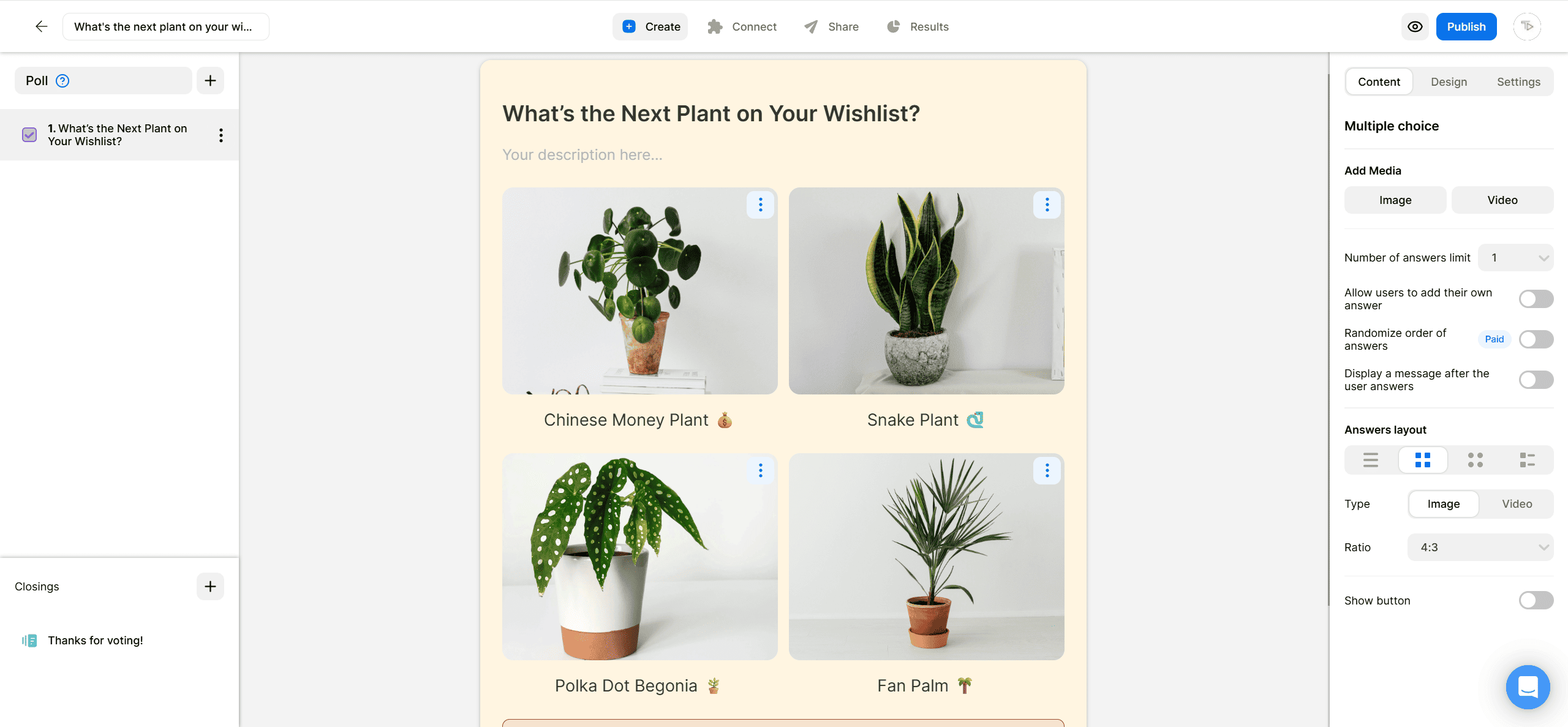
2. Copy the embed code
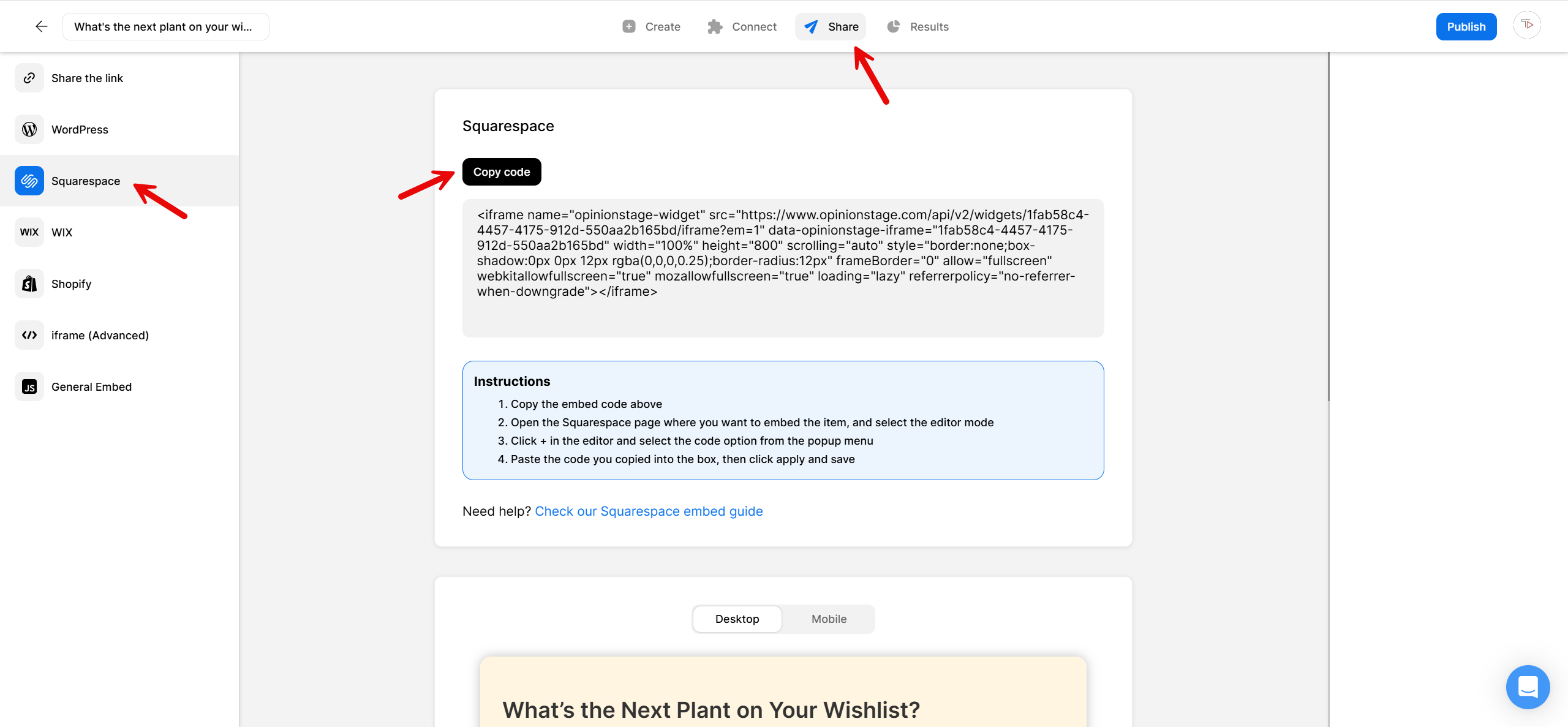
Click the Share button at the top of your screen, then click the Squarespace tab. Copy the embed code.
3. Add the poll to Squarespace
You have two options for embedding it on your Squarespace site. You can either add it to a new page or embed it on an existing page. If you’d like to add your poll to a new page, create the new page first, then follow the steps below to embed the poll.
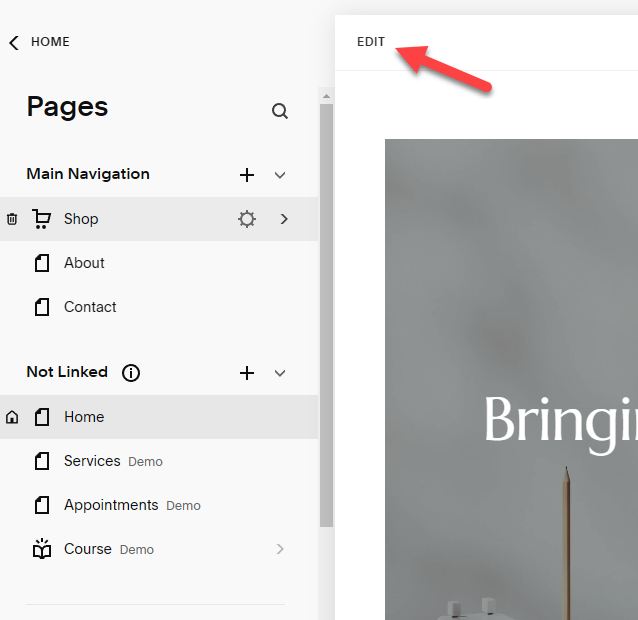
Start by clicking Edit at the top left-hand corner.
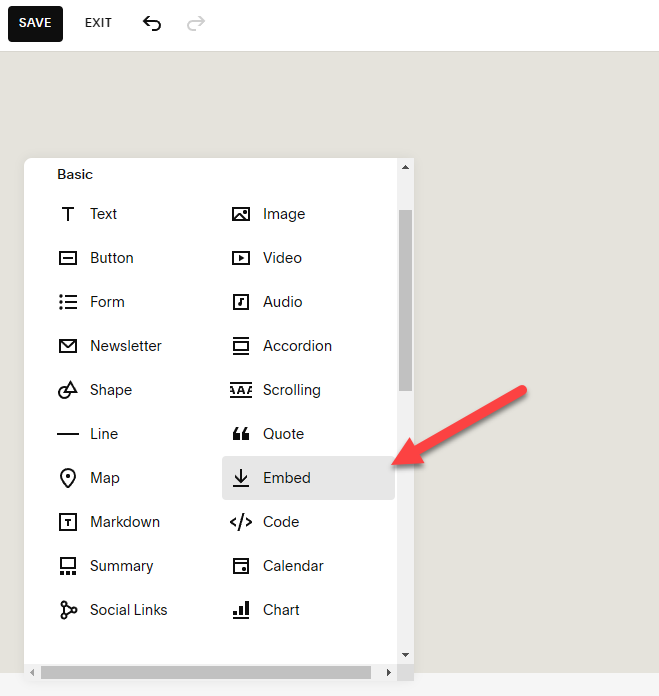
Then, click +Add Block on the left-hand side and scroll down to find the Embed button.
Squarespace will now add an embed block to the page. Double-click it to open up the Content menu. Next, click on Code Snippet and then Embed data.
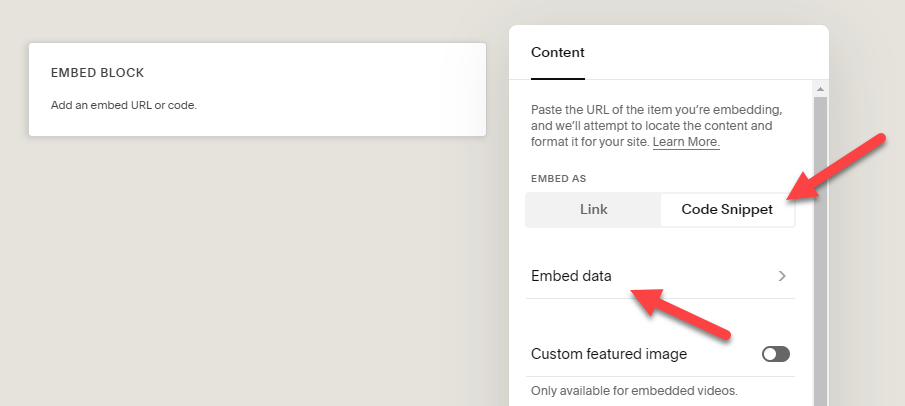
Paste your poll’s Squarespace embed code into the box. If you want to reposition your poll, just click and hold, then drag it to where you want on the page. Don’t forget to click Save.

And now you’re done!
Why Use Opinion Stage’s Poll Maker on Squarespace
Opinion Stage’s poll maker is built for engagement. Use image-based answers, show live results that update as votes come in, and customize the design to match your brand. Then embed the poll widget anywhere on your Squarespace site with no code or developer help required.
- Visual question and answer choices: Replace plain text options with images, GIFs, or videos to make your poll faster to scan and easier to answer. Visual polls often attract more votes because they grab attention quickly, reduce reading effort, and make voting especially easy on mobile devices.
- Live, real-time results: Let voters see results after they vote or keep results hidden and view them privately in your analytics dashboard. You can also export results to CSV or Excel for deeper analysis and reporting.
- Lead capture: Add an optional lead form after someone votes and before results are shown. Since people are already engaged at that point, they’re often more likely to opt in.
- Built for any device: Image polls are fully responsive and optimized for mobile. That matters on Squarespace, since much of your traffic likely comes from phones, and visitors expect a smooth, fast experience.
See all Opinion Stage poll maker features.
Best Practices for Squarespace Polls
A great poll is easy to understand, quick to answer, and rewarding to interact with. Here’s how to create one that people will love to engage in.
Ask One Clear Question
The best online polls focus on a single decision. When you create your poll, make sure you keep the question short, the answer choices simple, and the options clear enough that people can respond without overthinking.
Use Image Answers When Possible
For products, designs, destinations, food, or anything visual, image answers usually perform better than text alone. They’re faster to scan, more eye-catching, and make voting especially easy on mobile.
Show Results After Voting
One of the main reasons people vote is to see how others answered. Showing results right away gives voters an instant reward and makes the poll feel active and current. That sense of momentum can encourage more people to join in.
Put It Where People Will See It
A great interactive poll won’t help much if it’s hidden. Place it high on the page where it feels most relevant, like your homepage, a blog post, or a product page. Visibility and relevance both play a big role in getting people to actually take part.
Squarespace Poll FAQs
Does Squarespace have a built-in poll tool?
No. Squarespace doesn’t have a poll feature. The closest option is a Form Block, but that just collects responses without showing results, and there’s no live tally, no image-based options, and no results display after submission. For an actual poll, most Squarespace users use a dedicated poll maker like Opinion Stage.
Can I show live poll results on my Squarespace site?
Yes. Opinion Stage shows results in real time. You can choose whether to display results only after voting or only in your dashboard.
Will the embedded poll work on mobile?
Yes. Polls built in Opinion Stage are fully responsive. The layout adapts to phone, tablet, and desktop automatically. No extra setup needed.
Can I export poll results or send them to other tools?
Yes. You can export results to CSV or Excel from your Opinion Stage analytics dashboard. Opinion Stage also integrates with Zapier, Google Sheets, Mailchimp, HubSpot, and ActiveCampaign for automatic syncing. Webhooks are also available for custom destinations.
Can I create a poll on Squarespace for free?
Yes. Opinion Stage has a free plan that lets you create polls, embed them on Squarespace, collect responses, and view results without a credit card. Paid plans add features like custom branding and higher response limits.
Other Ways to Engage Your Squarespace Audience
- Squarespace Quiz: Test knowledge, build personality quizzes, or recommend products to visitors.
- Squarespace Survey: Gather feedback with visual surveys that have branching logic and NPS scoring.
- Squarespace Form: Collect signups, registrations, contact details, and more.