Free AI Form Builder That Gets More Responses
Build visual, interactive forms that keep people engaged from start to submit. One question at a time, fully on-brand, and easy to build in minutes.
- ✓ Free to use
- ✓ No credit card needed
Trusted by 100,000+ teams and brands, including








What is an AI form builder?
An AI form builder creates a complete form from a short prompt or topic. With Opinion Stage, you can create a form with AI in under a minute, or build one from a template or from scratch.
Why Use Forms?
Turn traffic into leads, signups, and submissions with forms people love to complete. With Opinion Stage’s form builder, you can create high-converting forms in minutes.
Capture Leads
Forms don’t just collect contact details, they help you qualify and segment your leads.
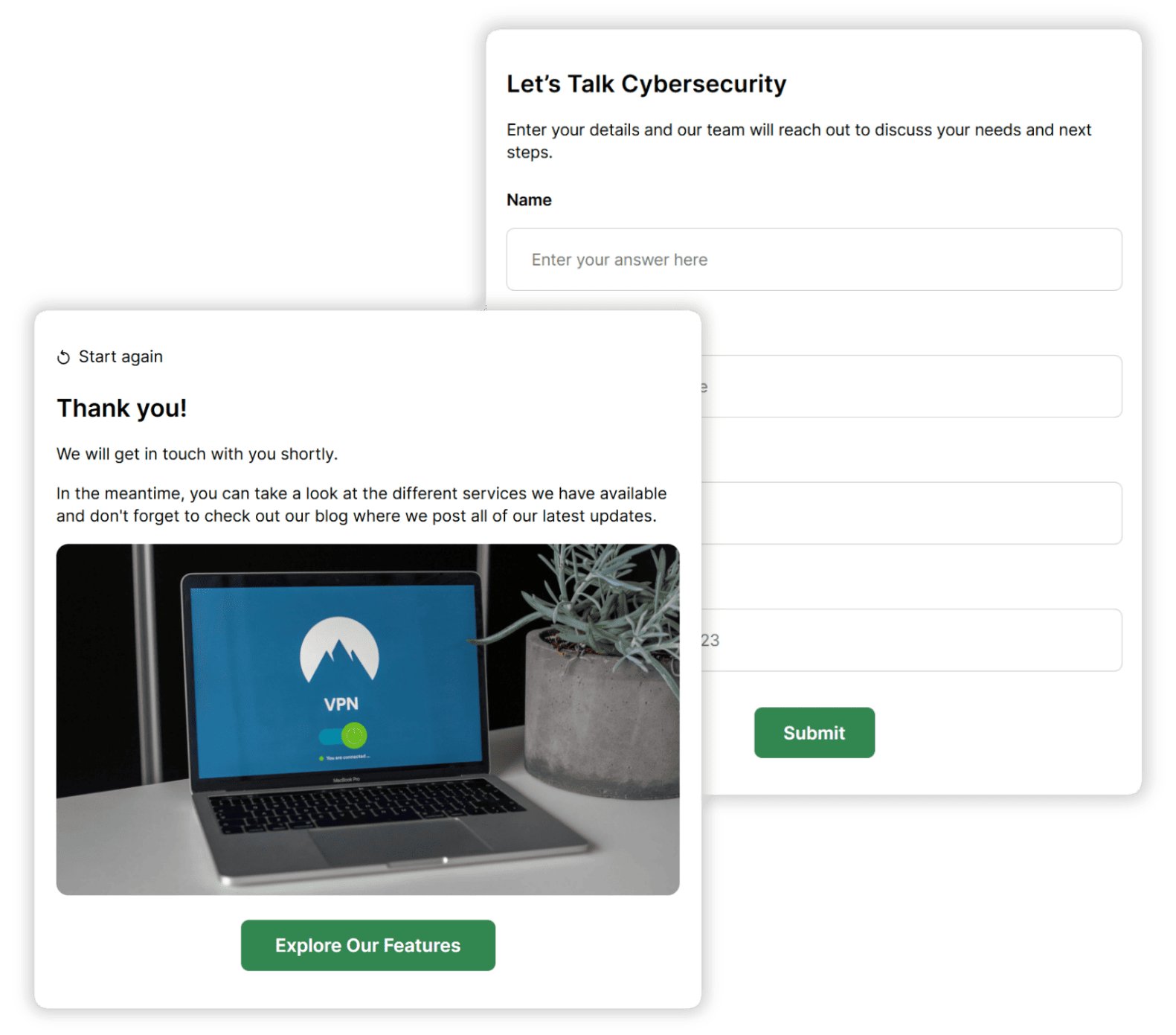
With Opinion Stage forms, every submission is tied to their answers, so you understand what each lead is looking for, their preferences, or their use case.
You can use that information to segment leads, prioritize follow-ups, and send more relevant messages from the start.

Grow Your List
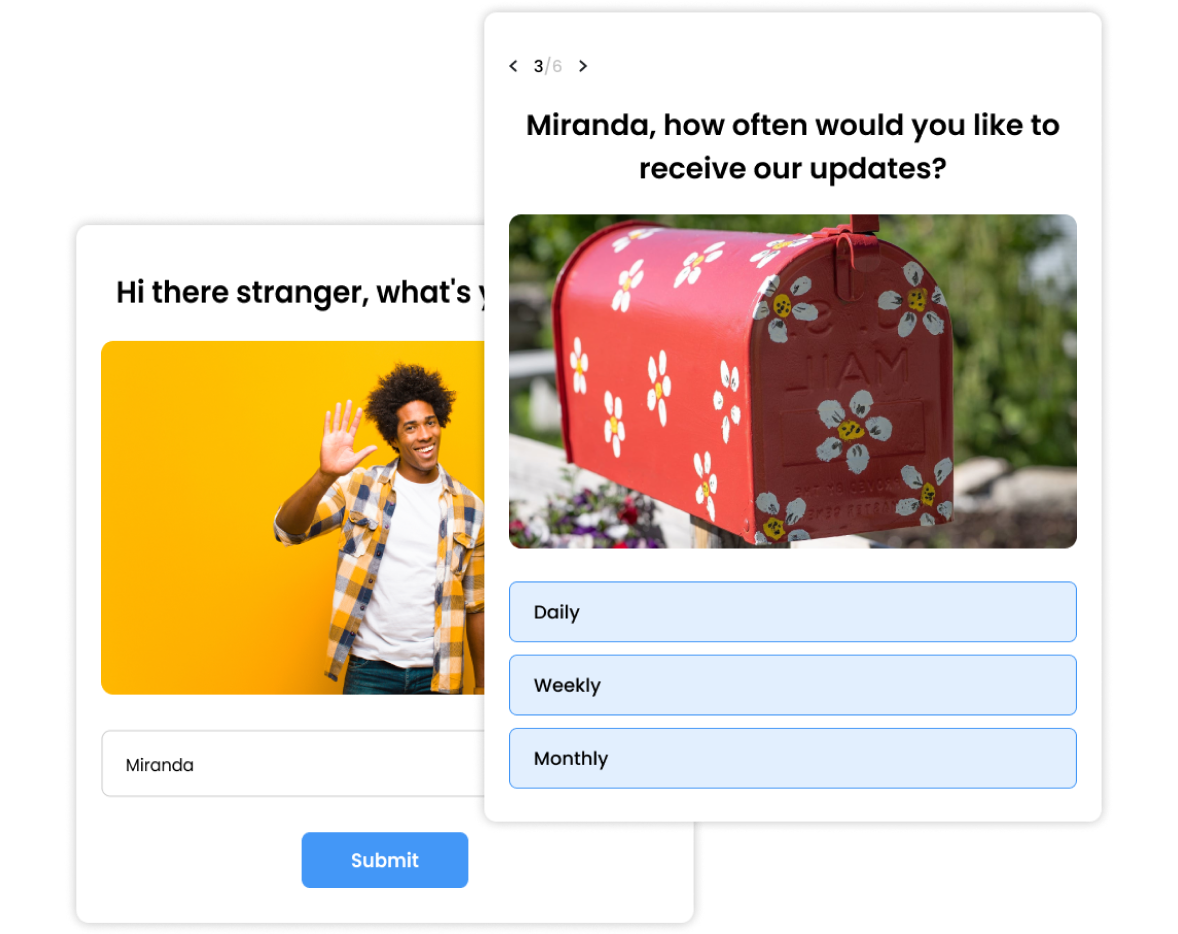
A signup is just the start of the relationship.
Opinion Stage forms make it easier for people to join your list with a visual, one-step-at-a-time experience that feels quick and natural. Whether it’s a newsletter, waitlist, or gated content, more completed signups means a larger audience you can reach and engage over time.
Collect Registrations
Make it easy for people to sign up and give you the details you need.
From event registrations to client intake, Opinion Stage forms help you collect the right information in a structured way, like time slots, preferences, or required details. That means you can plan, assign, or process registrations without chasing missing information or fixing incomplete entries.

Types of Forms You Can Create
Forms can do more than you think. Here are some of the most common ways to put them to work.
Contact Forms
Contact forms help you to collect messages, questions, or requests and send them directly to your inbox or CRM.
Signup & Registration Forms
You can use signup and registration forms for newsletters, events, or waitlists and collect the details you need in one place.
Client Intake Forms
Client intake forms gather information before you start working with someone. Collect details like goals, requirements, or background so you can begin with context instead of going back and forth.
Feedback Forms
A feedback form helps you to collect feedback after an experience, purchase, or interaction. Use feedback forms to understand what people think, what worked, and what could be improved.
Opinion Stage Form Maker Features
Everything you need to build forms people want to complete.
One Question at a Time
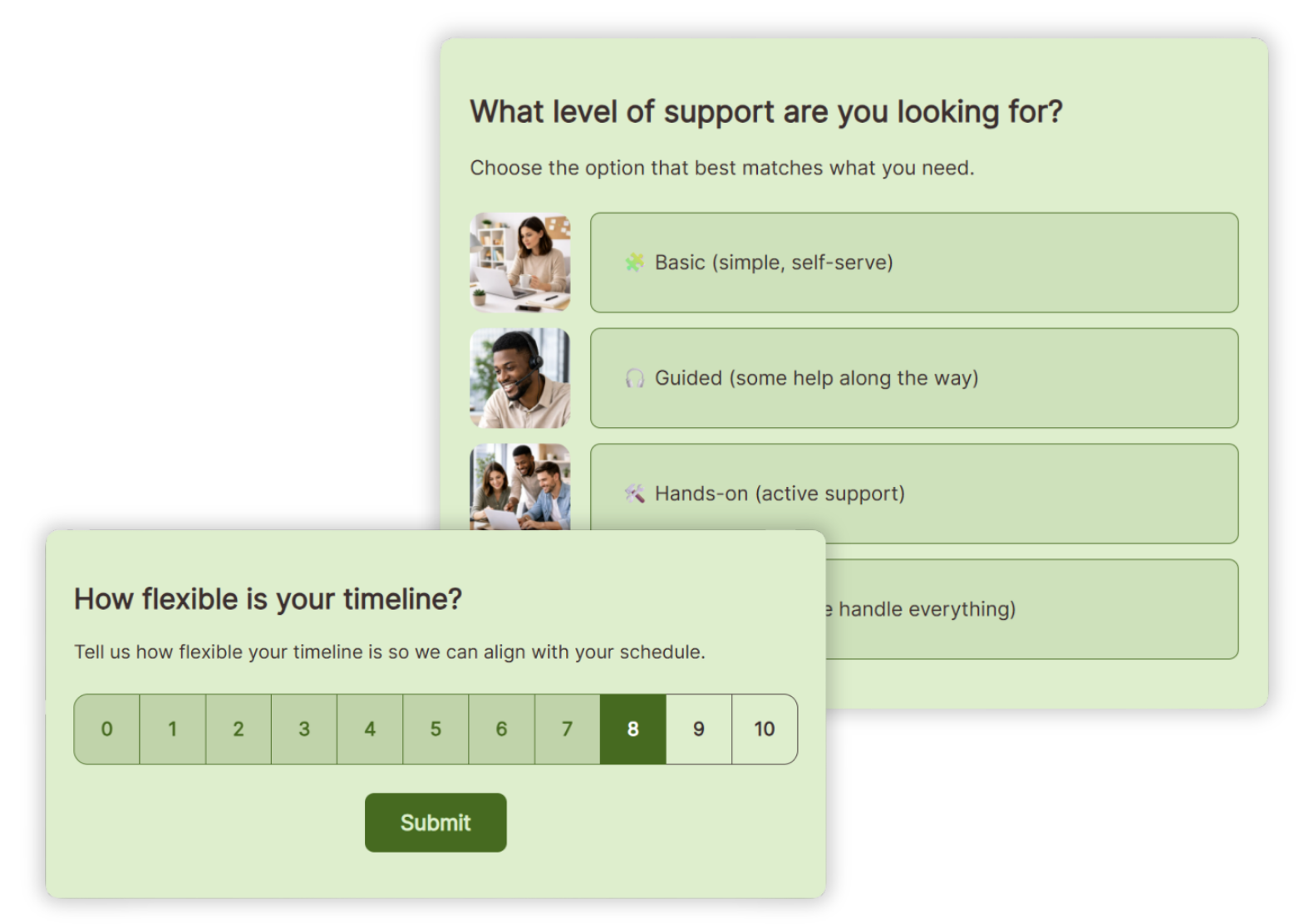
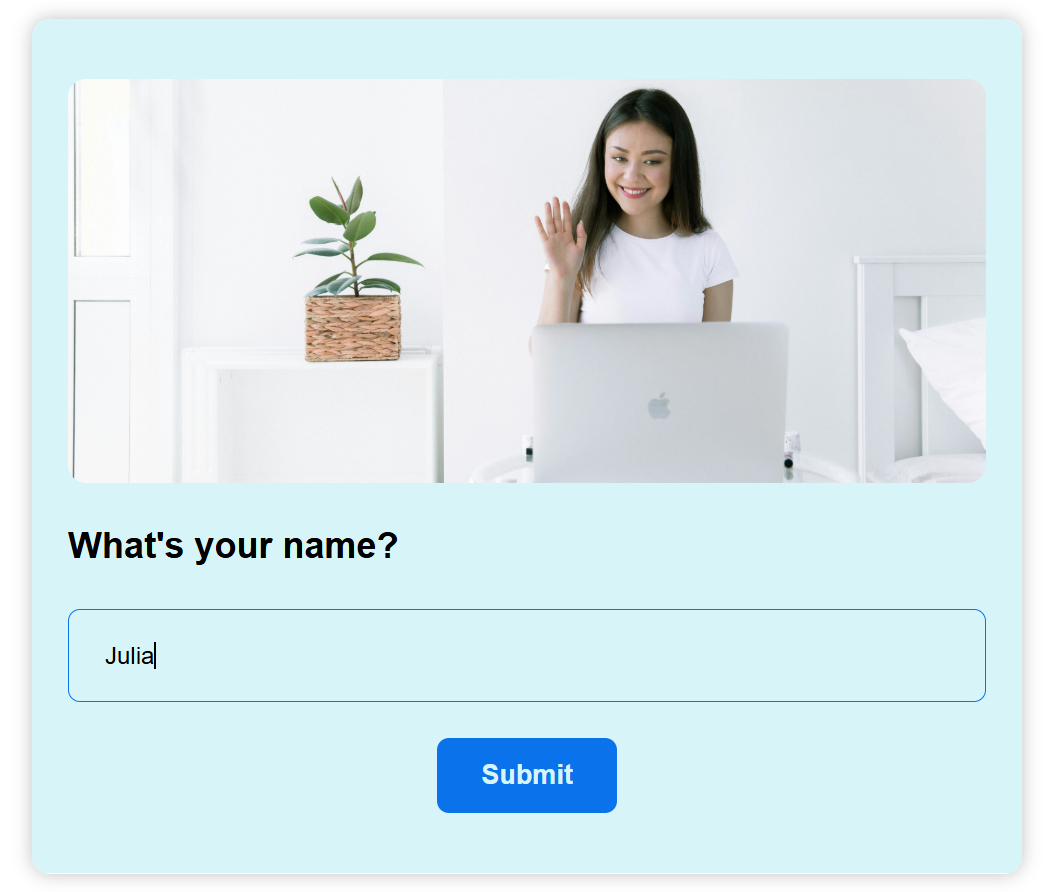
A form is more likely to get completed when each step feels quick and manageable. Opinion Stage shows one question at a time, which helps people stay focused, reduces drop-off, and keeps them moving through to submission.
A More Personalized Experience
Not every question is relevant to every person.
With skip logic and answer piping, each form adapts based on how someone answers. People only see what applies to them, which keeps the experience relevant and personalized.
- Skip logic: Show or hide questions based on earlier answers
- Answer piping: Bring previous answers into later questions (e.g., “You mentioned marketing – what’s your biggest challenge?”)
- Easy to set up: Configure everything without technical experience
Visual & Engaging
Forms are easier to complete when questions are clear and quick to understand.
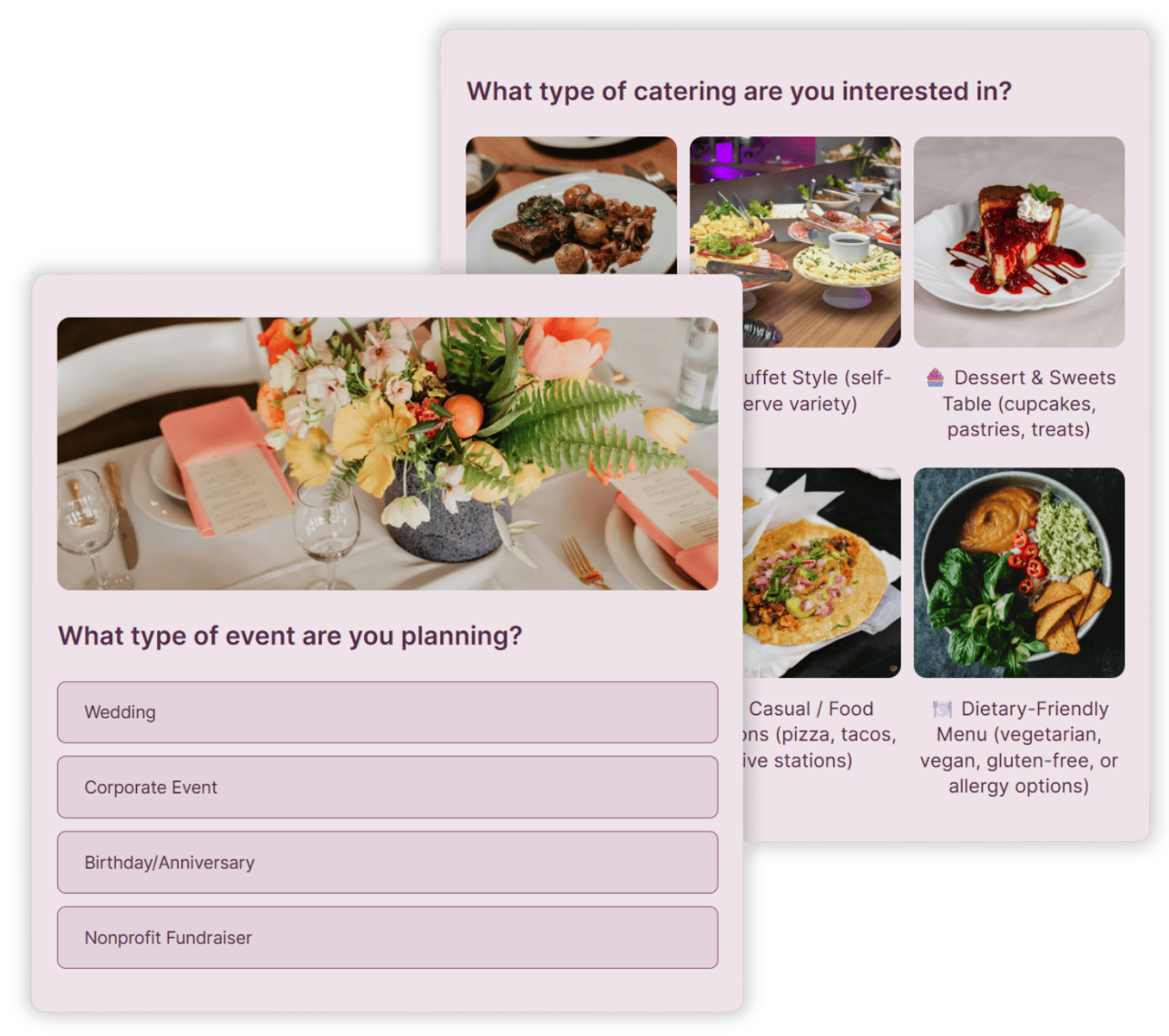
Adding images and videos help people process information faster and respond with less effort. Instead of reading through blocks of text, they can recognize and choose, which increases completion.
- Add images, videos, or GIFs to questions and answers
- Use visual answer layouts like image grids and thumbnails for quicker, more intuitive responses
Forms That Match Your Brand
Your form should feel like part of your brand, not a third-party tool.
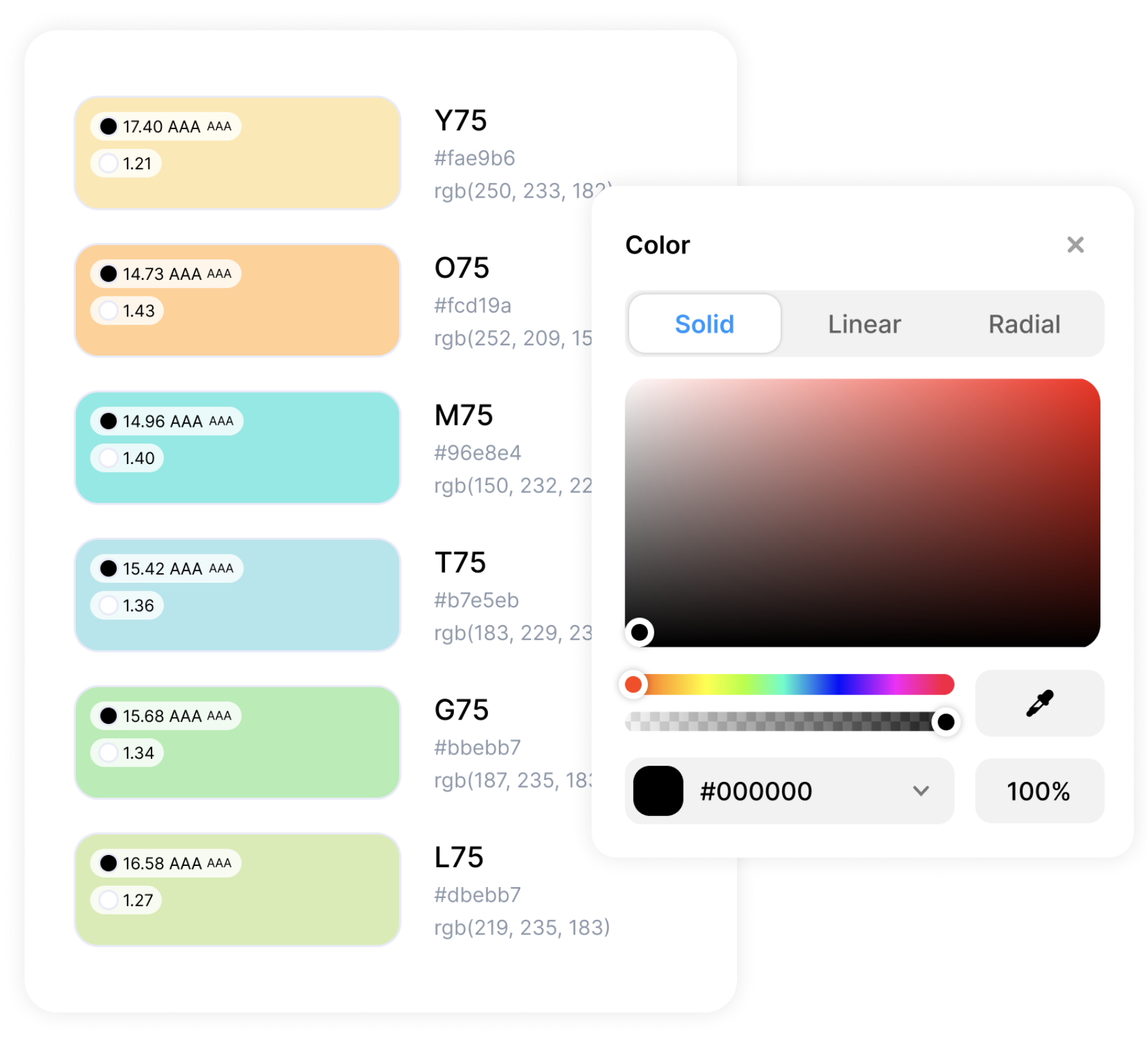
With Opinion Stage, you control how everything looks and feels, so your forms stay consistent across every touchpoint.
- Customize color themes and fonts
- Add your logo and remove Opinion Stage branding
- Fine-tune the design with advanced styling options like custom CSS
- Customize all CTAs and buttons to fit your voice
Create in Minutes
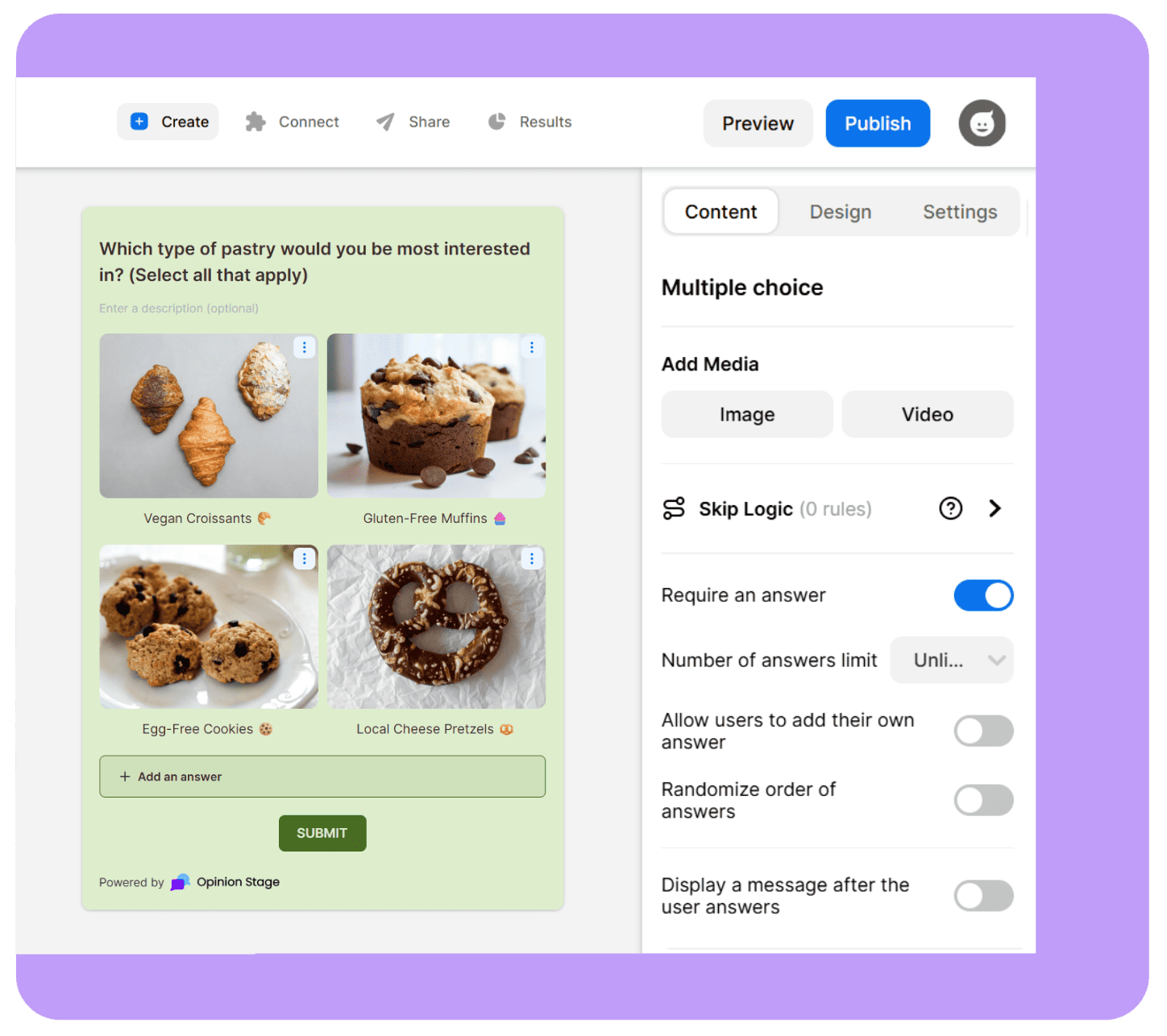
With our visual and easy-to-use builder, you can get your form live in no time.
- Free plan available: Start building right away, no credit card required.
- 100+ templates: Ready-to-use forms for every use case.
- Beginner-friendly builder: No design or coding skills needed
- AI form builder: Build a form from a short prompt in under a minute. You can also upload an existing document – PDF, Word, spreadsheet, and more – and the AI will create a form from it.
Analytics That Help You Improve
Seeing how many people submitted is only part of the picture.
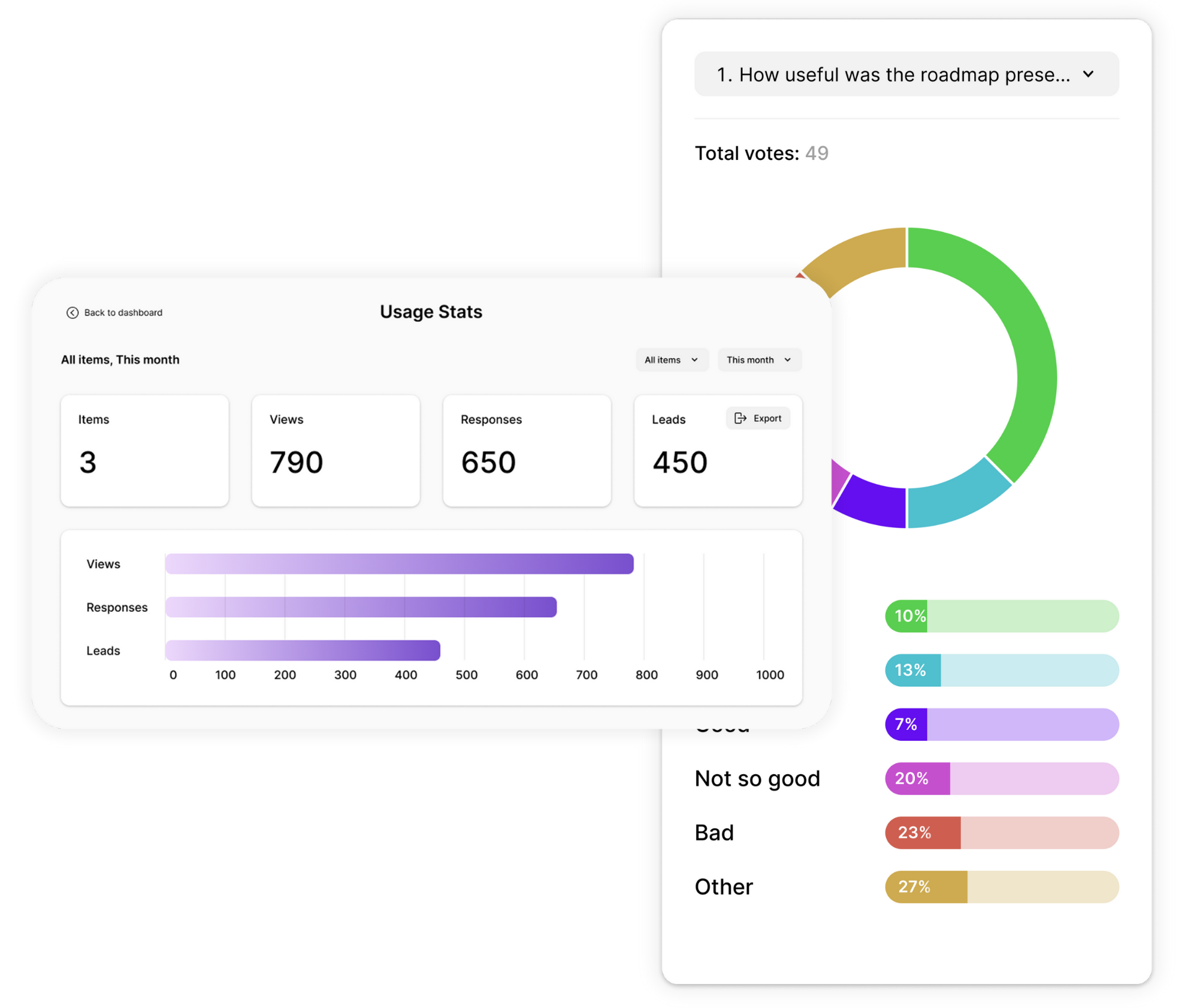
Opinion Stage shows where people engage, hesitate, and drop off, so you can make changes that improve results, not just track numbers.
- Real-time results as responses come in
- Completion rates and drop-off points by question
- AI analysis of responses to surface patterns without manual work
- Export to Excel, Google Sheets, or CSV for deeper analysis
Share & Embed Anywhere
Opinion Stage makes it easy to get your form in front of your audience, fast and wherever they are.
- Embed on your site: Paste an embed code into any website, including WordPress, Squarespace, and Wix.
- Share via link: Send it through email, messaging apps, or social media.
- Hosted landing page: Use an Opinion Stage page to run your form without needing your own site.
- Mobile-friendly: Forms load quickly and work smoothly on any device.
Connect to the Tools You Already Use
Every form submission can flow straight into the tools your team already works in. Set it up once and responses go exactly where they need to go, automatically.
- Send responses to HubSpot, Mailchimp, Zapier, Salesforce, and more.
- Webhooks and API access for custom data routing.
- Email notifications on every new submission so nothing slips through.
- Export to CSV, Google Sheets, or Excel.
Secure, Accessible, & GDPR Compliant
Your data and your audience’s information are protected with industry-standard security practices. Opinion Stage forms use encryption in transit and at rest, and support GDPR compliance.
All forms follow WCAG 2.1 accessibility guidelines, ensuring they work for everyone, including people using screen readers or keyboard navigation.

How to Create a Form
1. Create
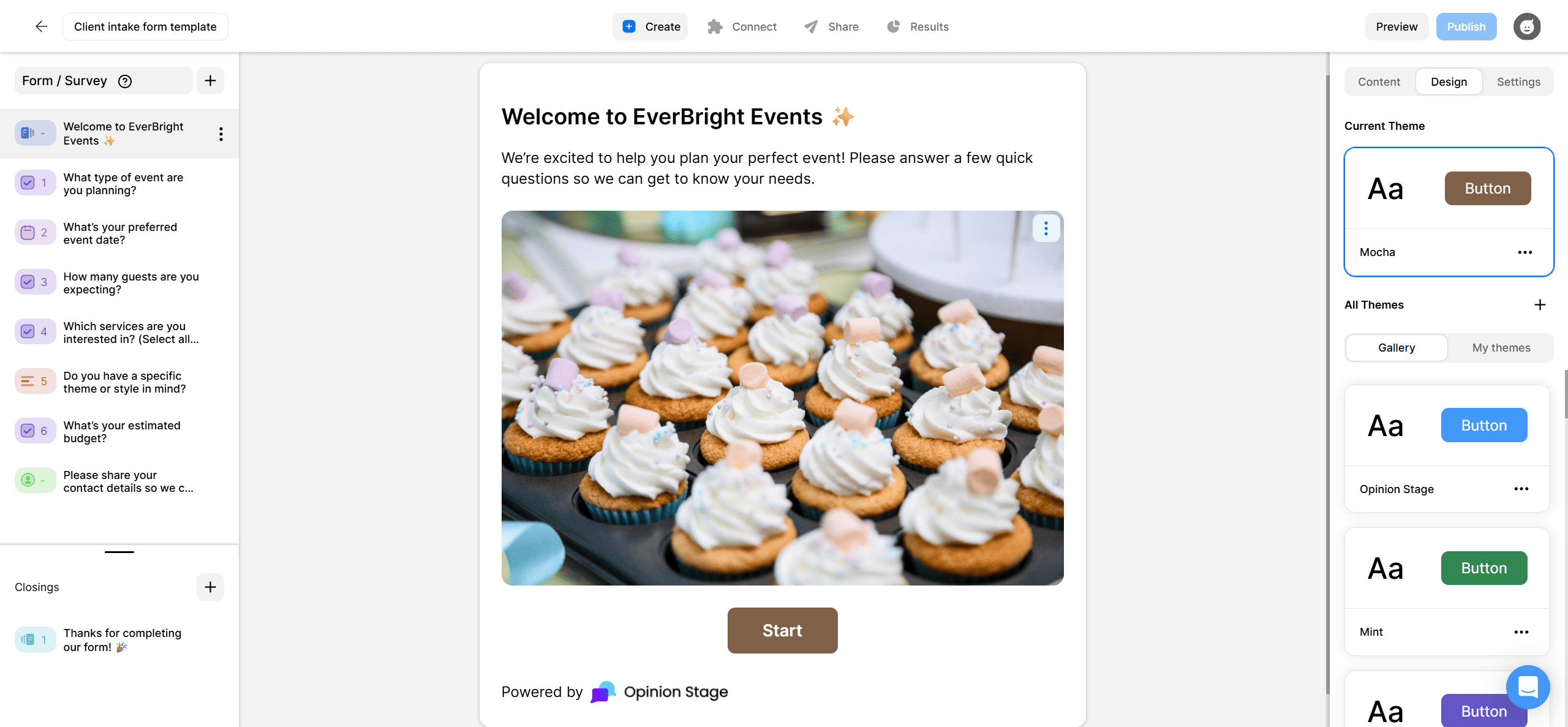
Click Create a new item in your dashboard and choose how you want to start.
Start with AI by describing what you need or you can start from a template or build from scratch. Then customize your questions and include images or videos if needed.
2. Share
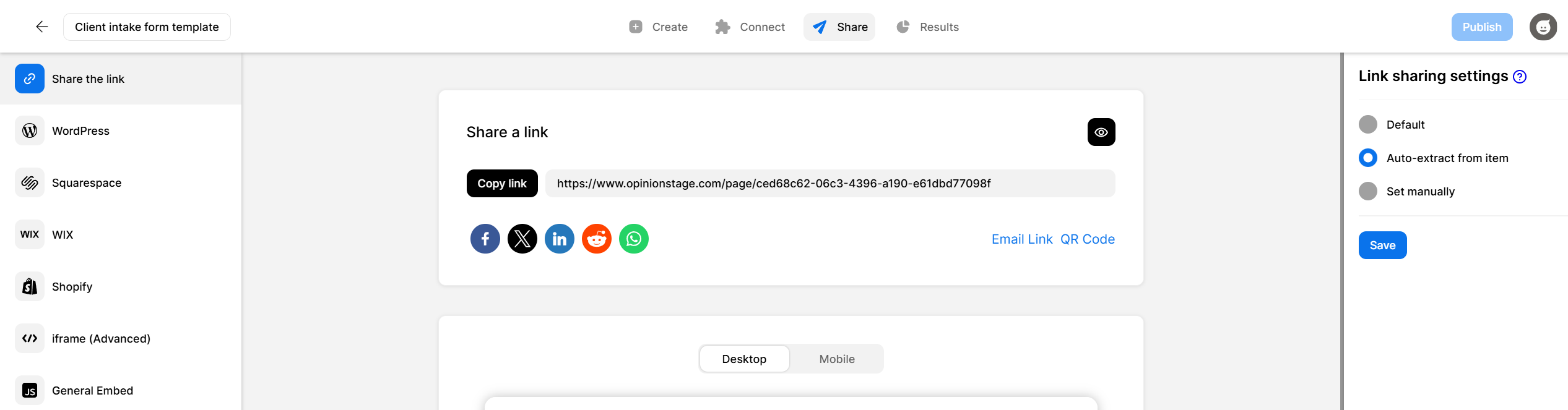
Publish your form with a link, embed it on your website, or share it via email and messaging apps. You can also run it from an optimized Opinion Stage landing page – no website needed.
3. Track
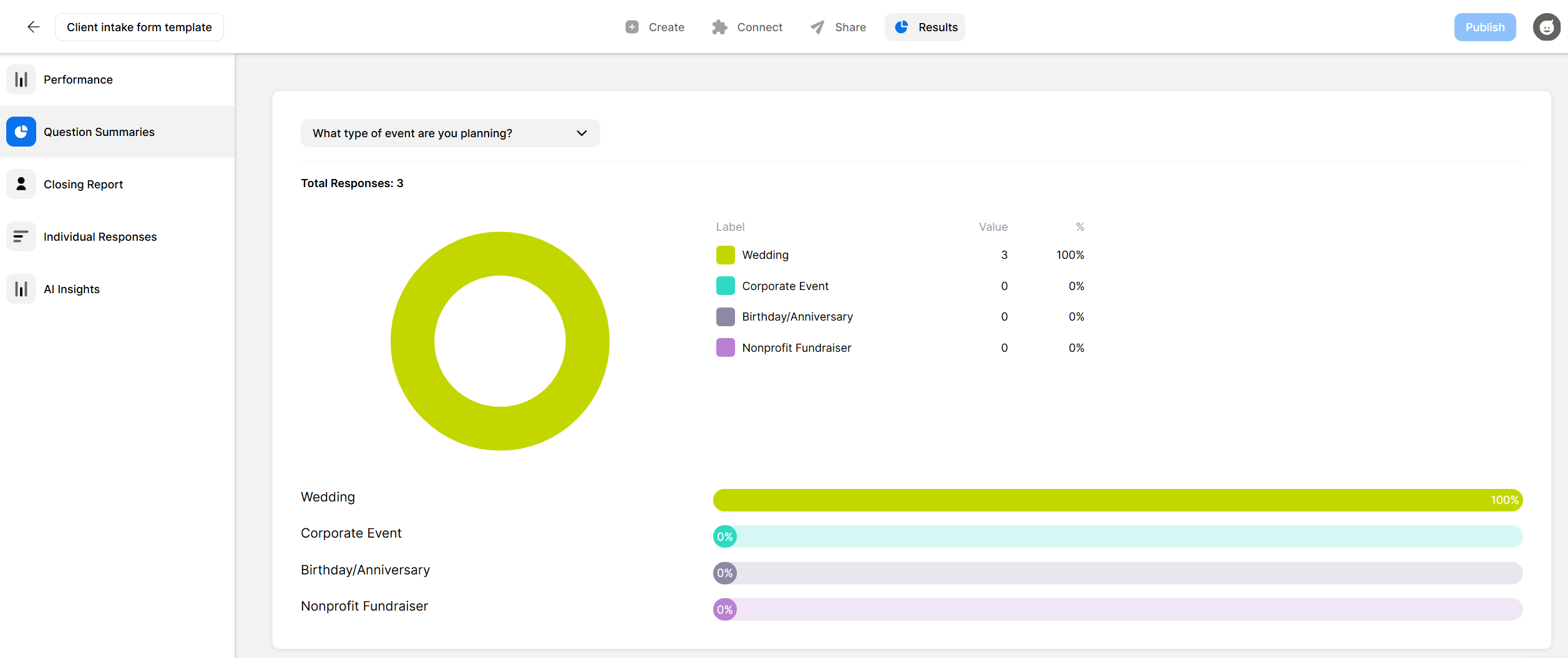
Watch responses come in on your real time analytics dashboard. See completion rates, drop-off points, and individual responses, then use that data to keep improving your form over time.
Hundreds of Customers Gave Us 5-Star Reviews



We saw nearly a 50% increase in feedback submitted, a big help for my team!

Kari Gilbert
With Opinion Stage we can create beautiful and on-brand content in an easy, collaborative fashion.

Stasia Kehoe
You can create what you need in minutes and start collecting data right away. Highly recommended.

Fillipo Strano
- 1.3M+ Experiences created
- 3B+ Questions answered
- 20M+ Leads captured
- 10+ Years of results
Form Builder FAQs
How is Opinion Stage different from Google Forms?
Google Forms presents all questions on a single page, while Opinion Stage shows one question at a time, which makes the form easier to go through and helps more people complete it. In addition, Opinion Stage offers visual design options, including images and video in questions, along with features like skip logic, answer piping, and CRM integrations.
Can I embed a form on my website?
Yes. The forms you create have an embed code you can paste into any website. Works with WordPress, Squarespace, Wix, and more. You can also share forms by direct link or run them on an Opinion Stage landing page.
Is there a free form builder?
Yes. Opinion Stage has a free plan with no time limit and no credit card required that lets you create and publish forms right away. Paid plans unlock additional features such as white labeling and higher response volume.